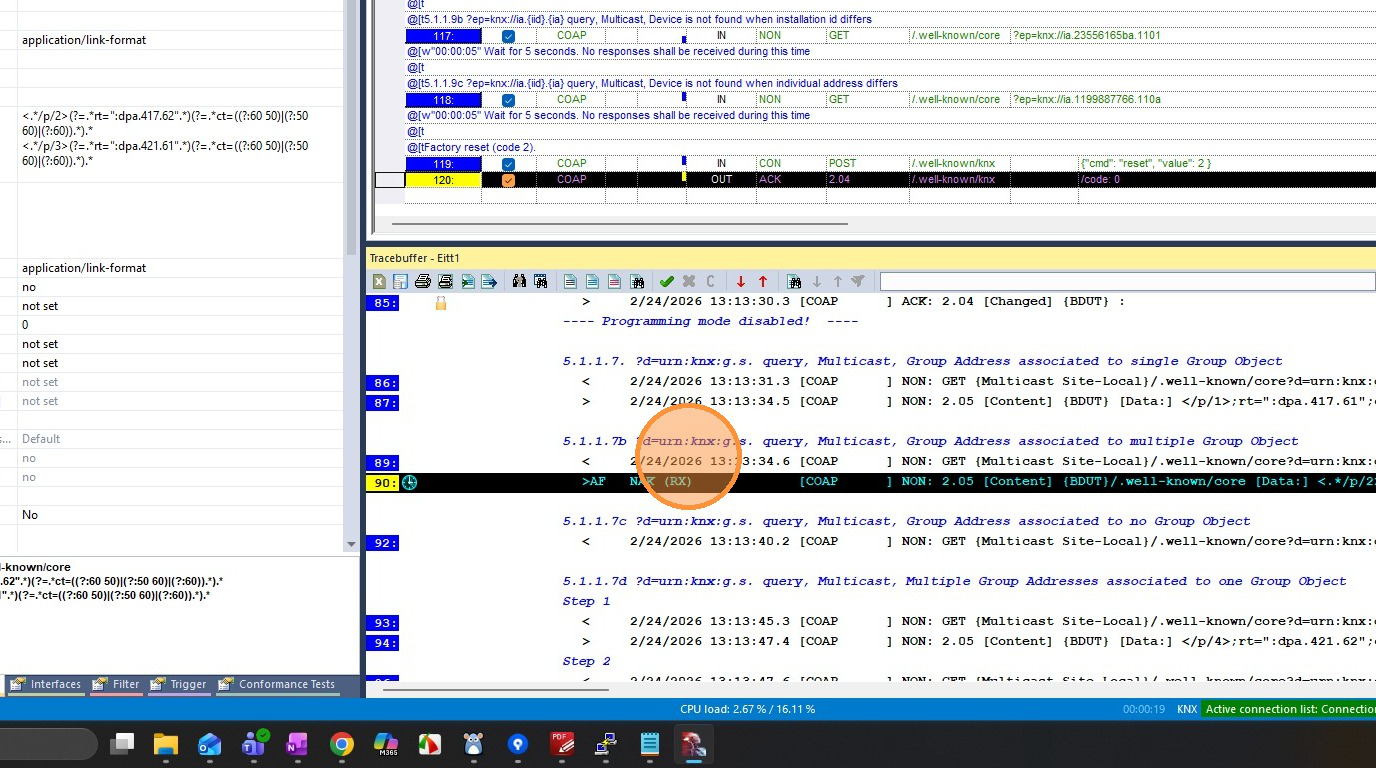
KNX IoT Stack Certification Tests via EITT
EITT (KNX Interworking Test Tool) is KNX’s official test and analysis software. Teams use it to test, monitor, simulate, and validate KNX device behavior, especially for interworking (how devices work together) and protocol/system stack compliance. KNX manufacturers primarily use it during development, and KNX accredited test labs use it during certification and validation workflows.
EITT also supports:
- Automatic test generation from templates
- Variable datasets to adjust tests without editing telegrams manually
- REST API automation for external integration
How to Use EITT for Testing
Obtain & Install
You must be a KNX member or accredited test lab to license and download EITT via your MyKNX account. Install the EITT tool on a Windows PC and install appropriate interface drivers (USB/IP interfaces for KNX communication).
Set Up Interfaces
Connect one or more physical or virtual interfaces:
- KNX TP USB interface
- KNXnet/IP (IP-based) interface
Configure interface names and parameters in EITT to match the physical network connection you want to test.
KNX IoT Interface Configuration
KNX IoT (CoAP) communication requires no interface configuration. EITT automatically recognizes KNX IoT (CoAP) telegrams and sends them to the active network adapter.
Create / Load Test Scenarios
EITT uses test templates and test sequences (often in XML or CTL formats) that define:
- Which telegrams to send
- Which responses to expect
You can either load existing test templates or build custom sequences depending on the tests you want to run.
Record & Monitor Traffic
Start the trace buffer to capture live KNX telegrams from the bus. Apply filters to focus on elements like:
- Group communication
- Individual device behavior
- Secure (encrypted) messages
Execute Tests
Run predefined scenarios:
- EITT transmits the defined telegrams
- Capture responses from the device under test
- Monitor how the device reacts and whether it behaves according to the KNX standard
Review Results
Analyze the trace output for:
- Correctness of responses
- Missing or unexpected telegrams
- Conformance to expected protocol and timing
Use trace filters, variable datasets, and built-in evaluation results to interpret test outcomes.
Requirements for IoT Stack Testing
- Install EITT on a Windows PC.
- Connect the KNX IoT device (DUT) to the same network.
- Enable IPv6 on the Windows PC.
How to Create and Run Test Sequences
Set Up the Project
Click "Create a new project"
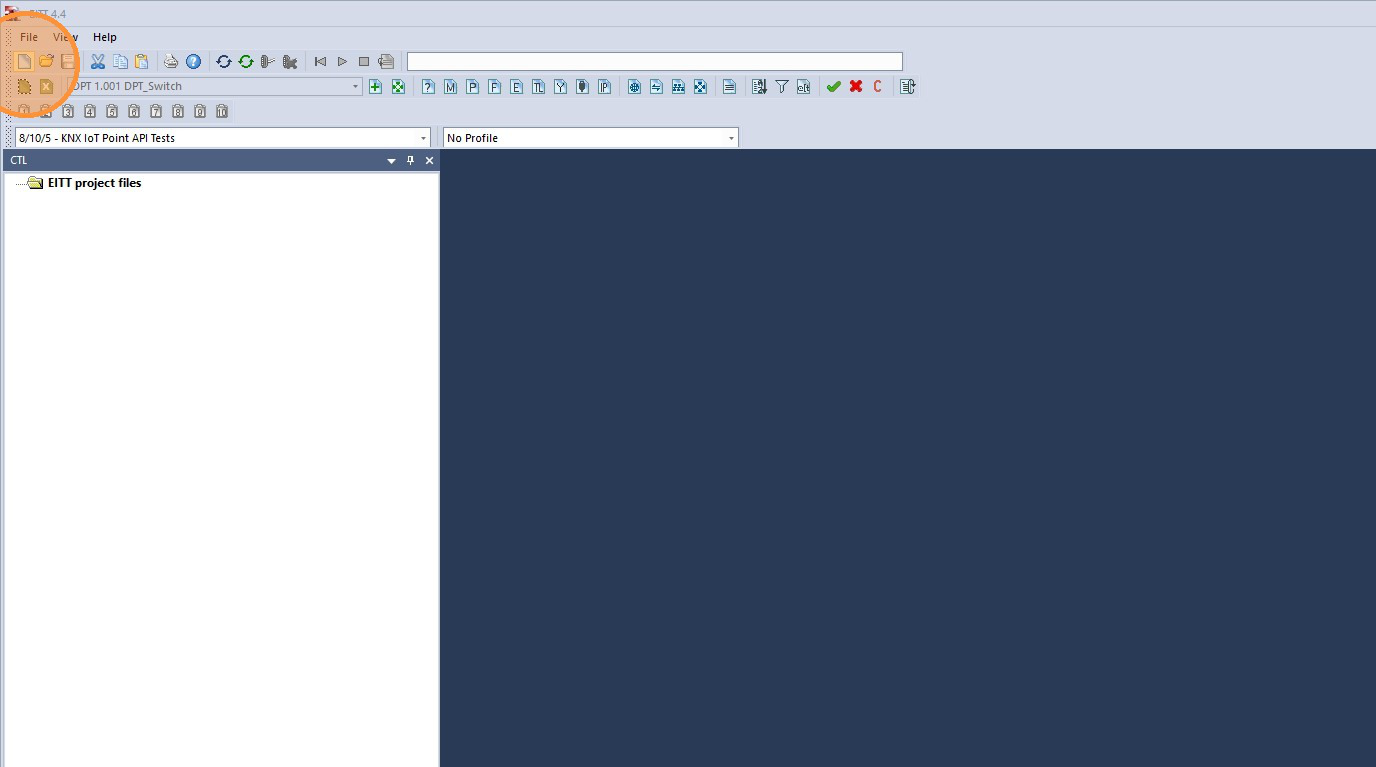
Click "Save the active project"
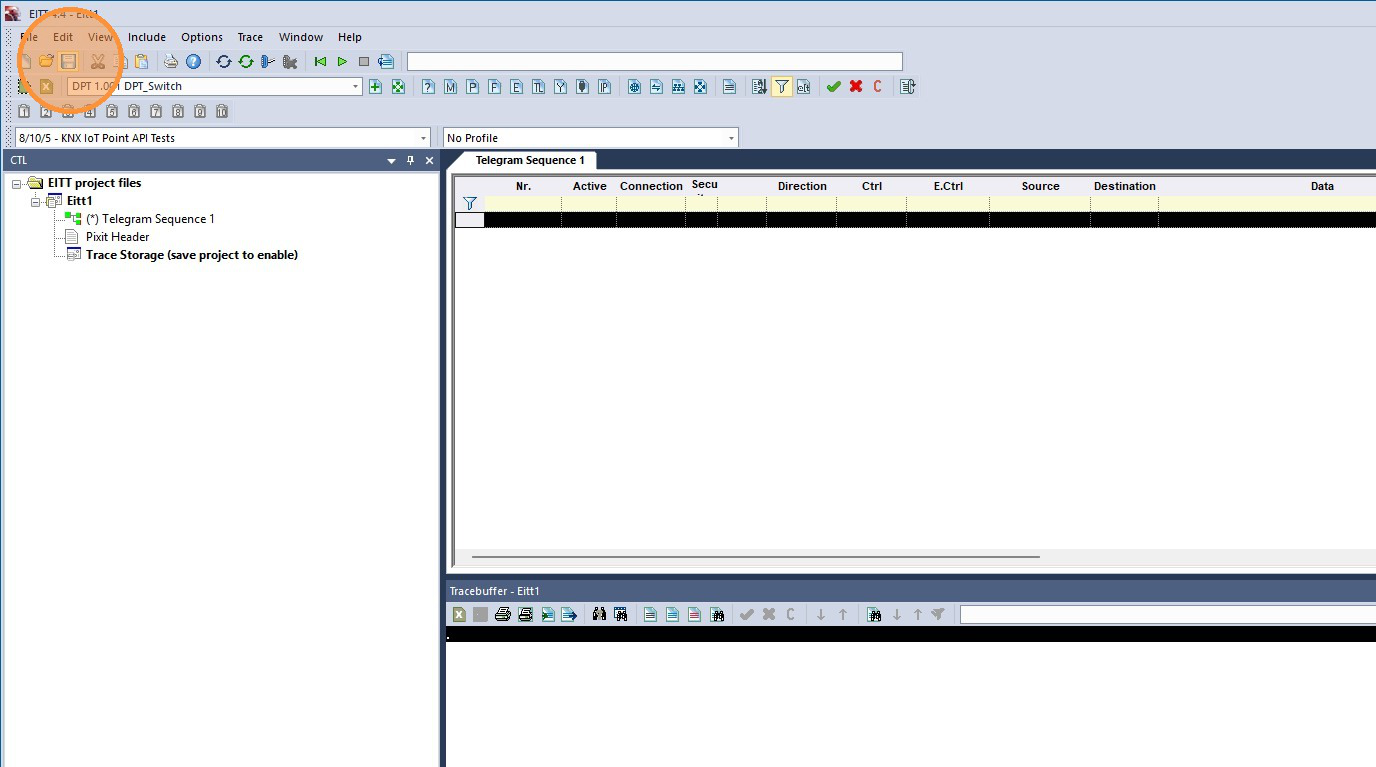
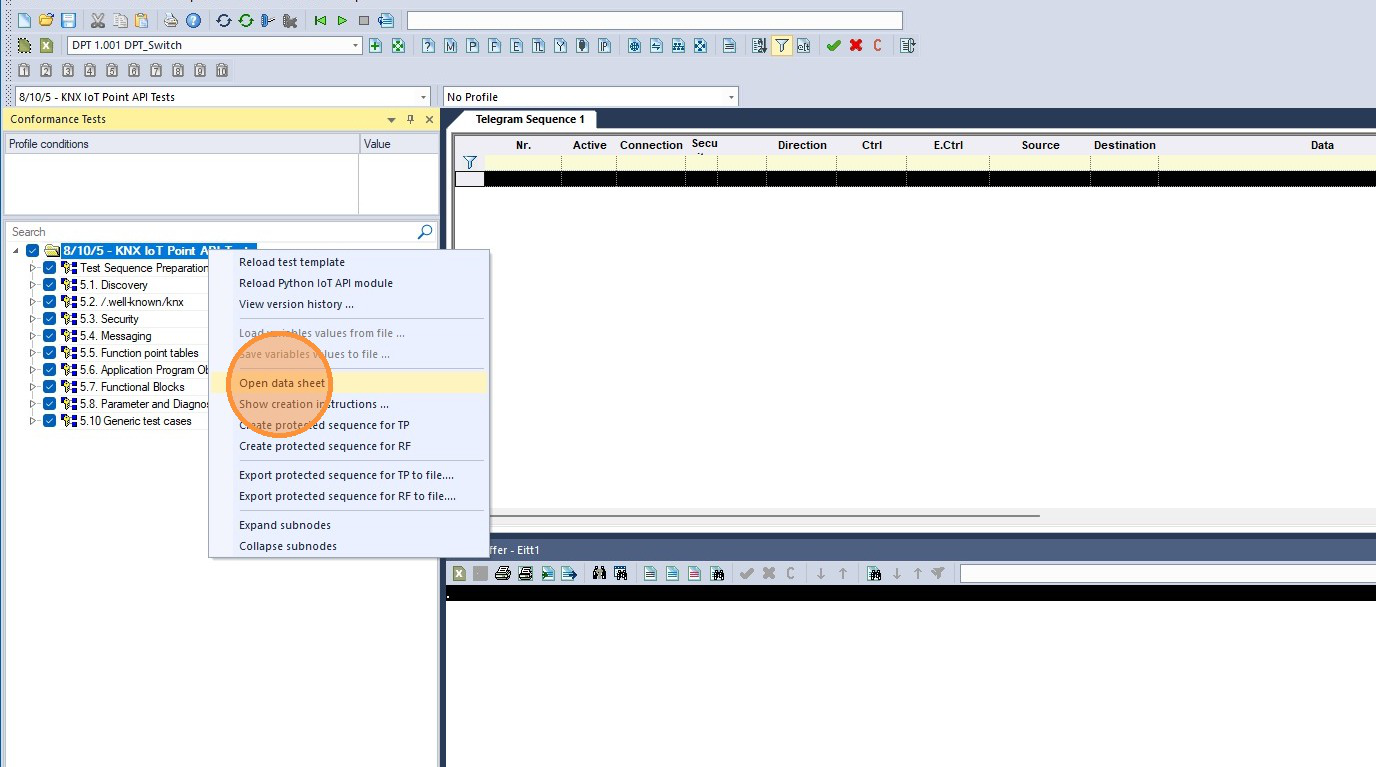
Go to the "Conformance Tests" tab
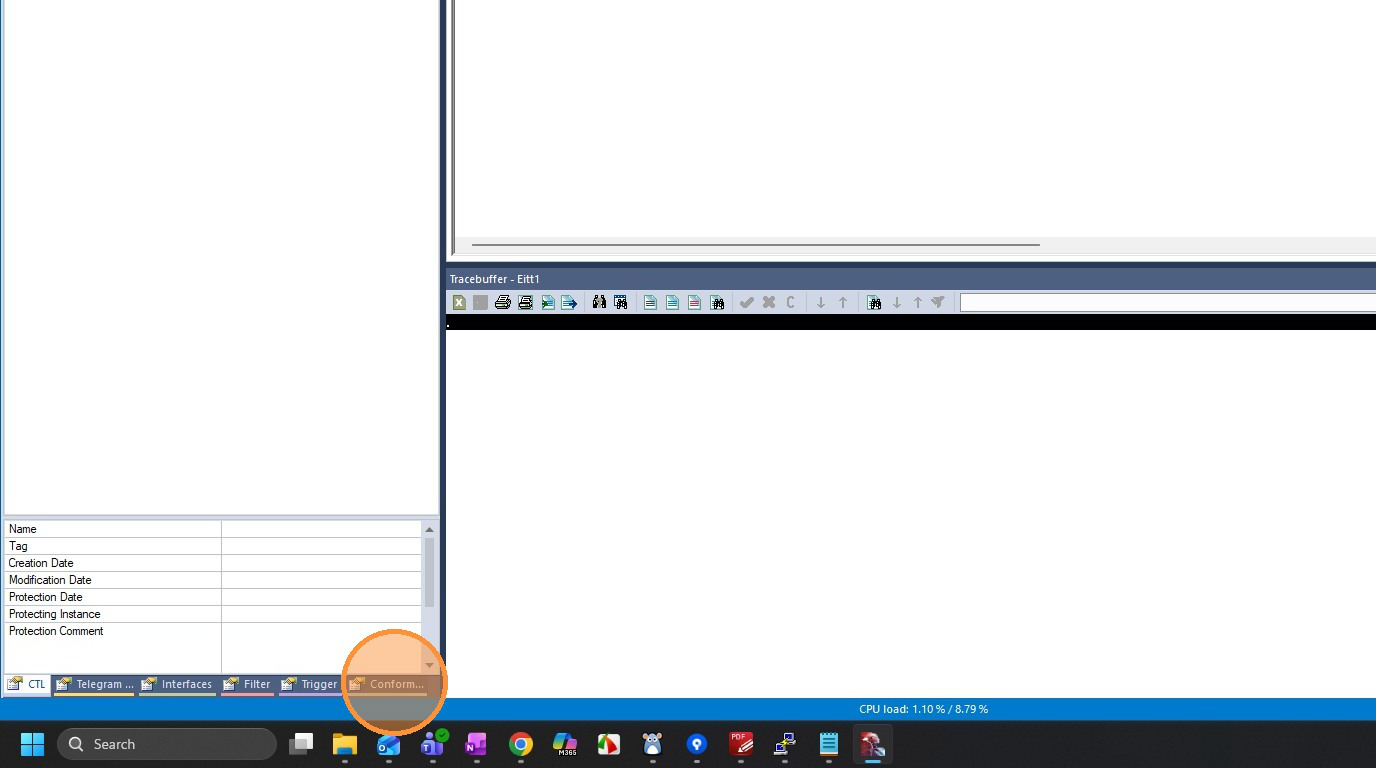
Right click and then click "Open data sheet"
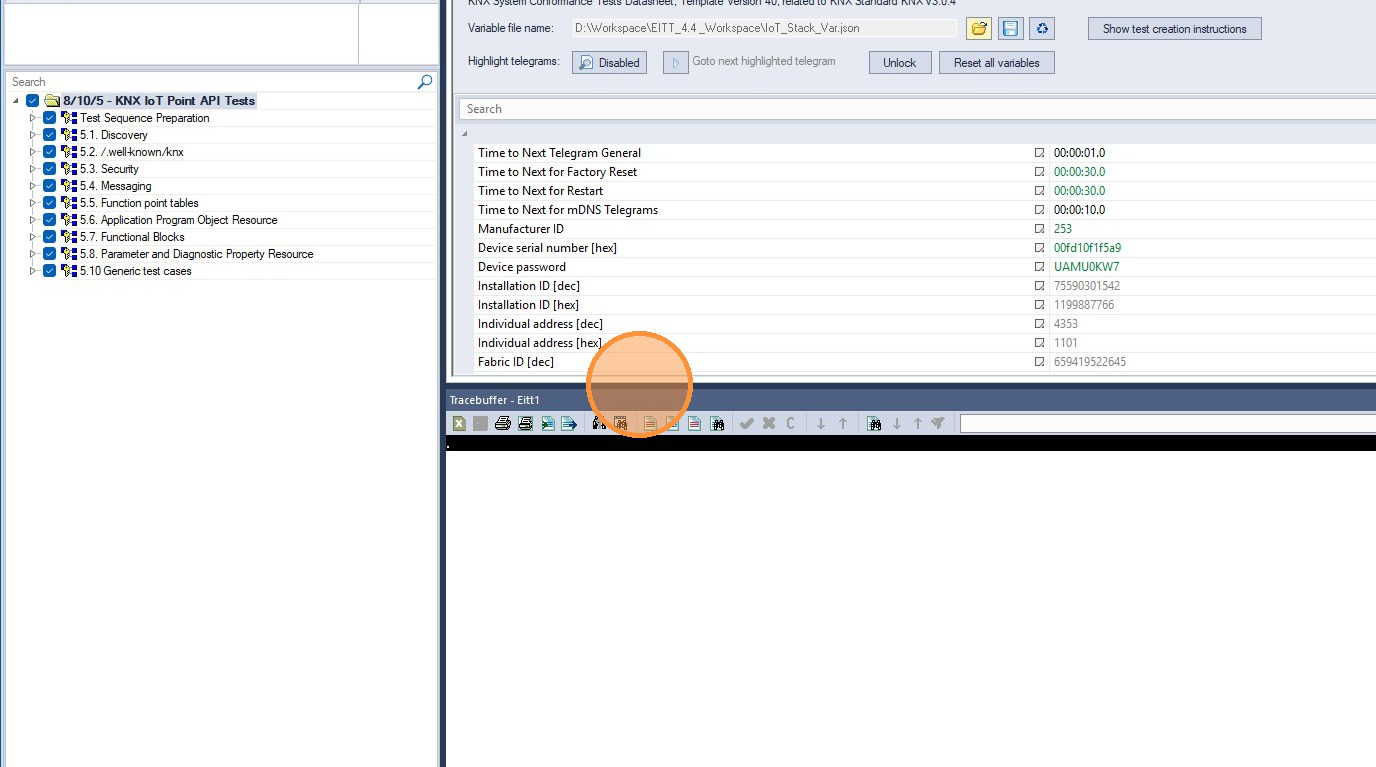
Fill the data sheet with your device information
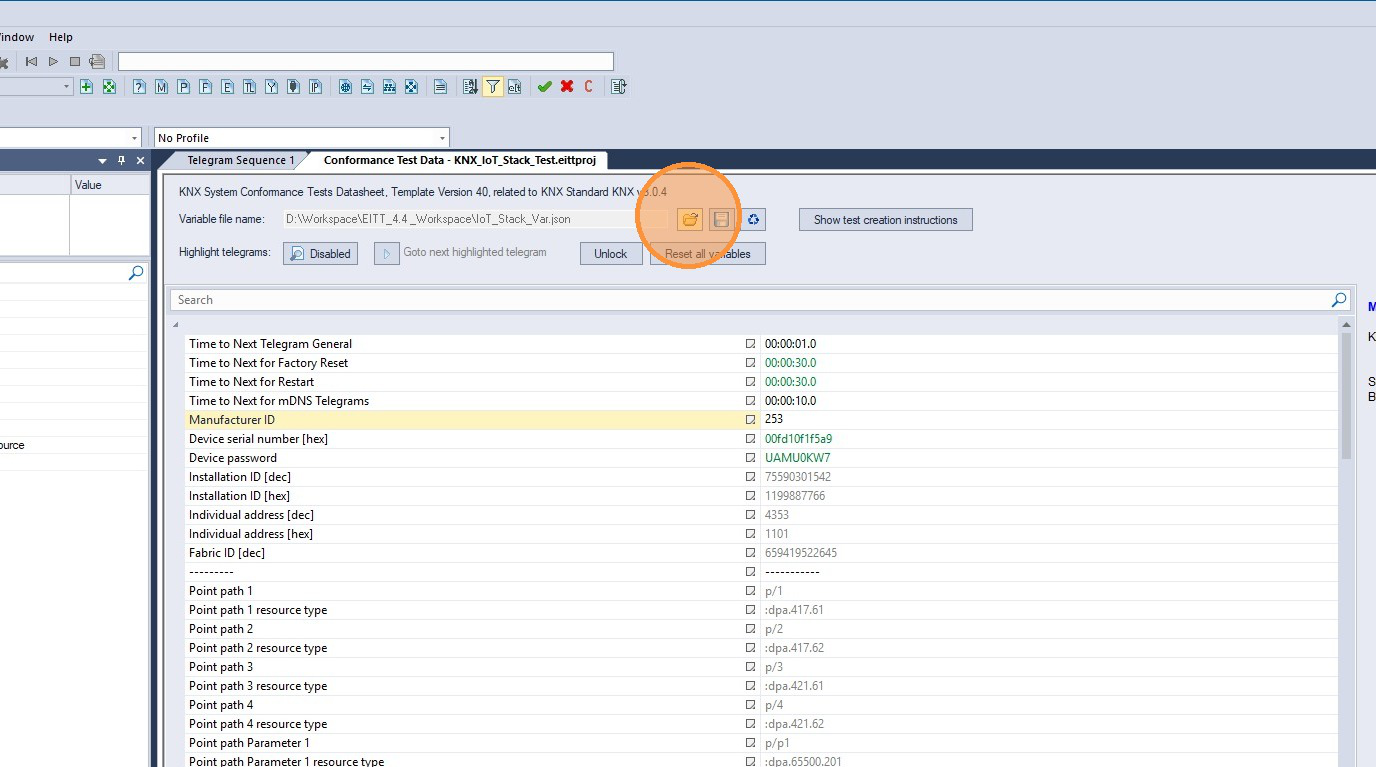
Load variables from the configuration file
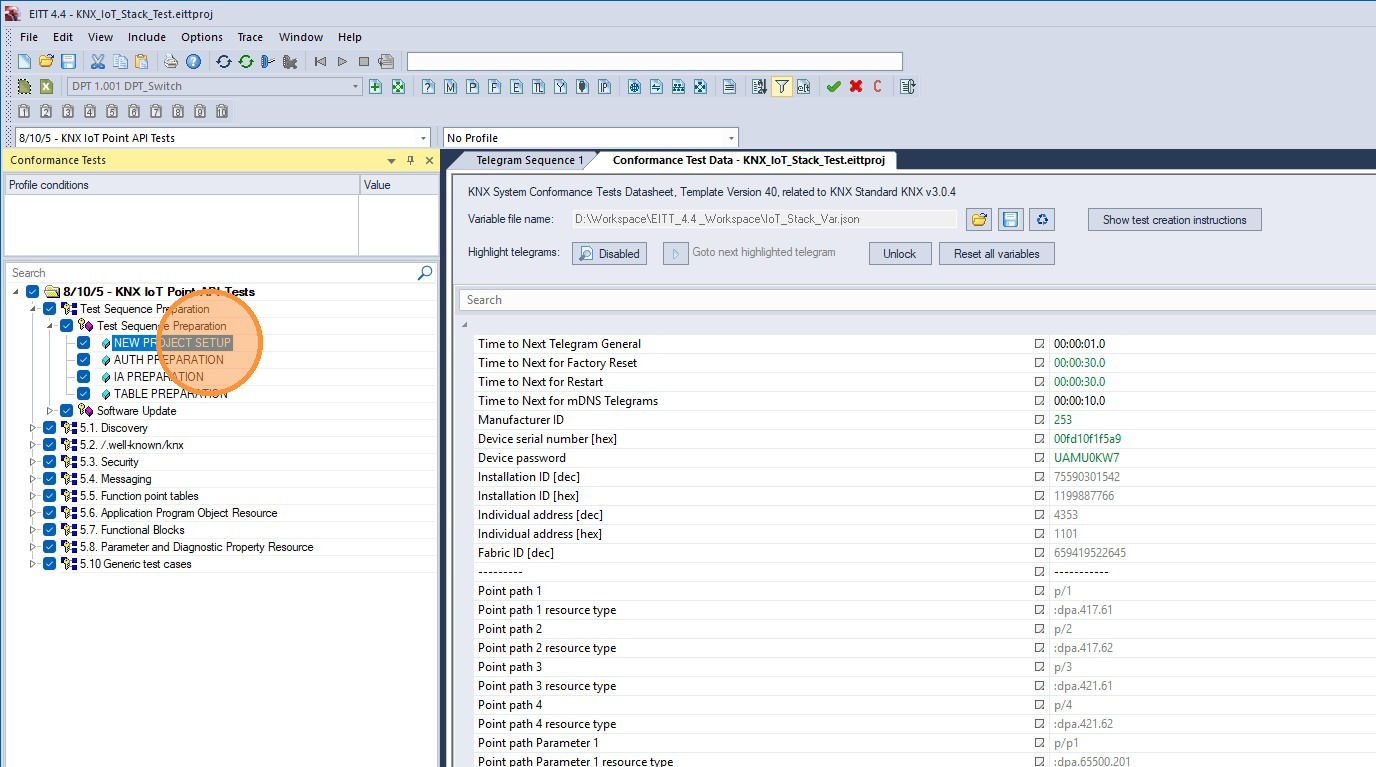
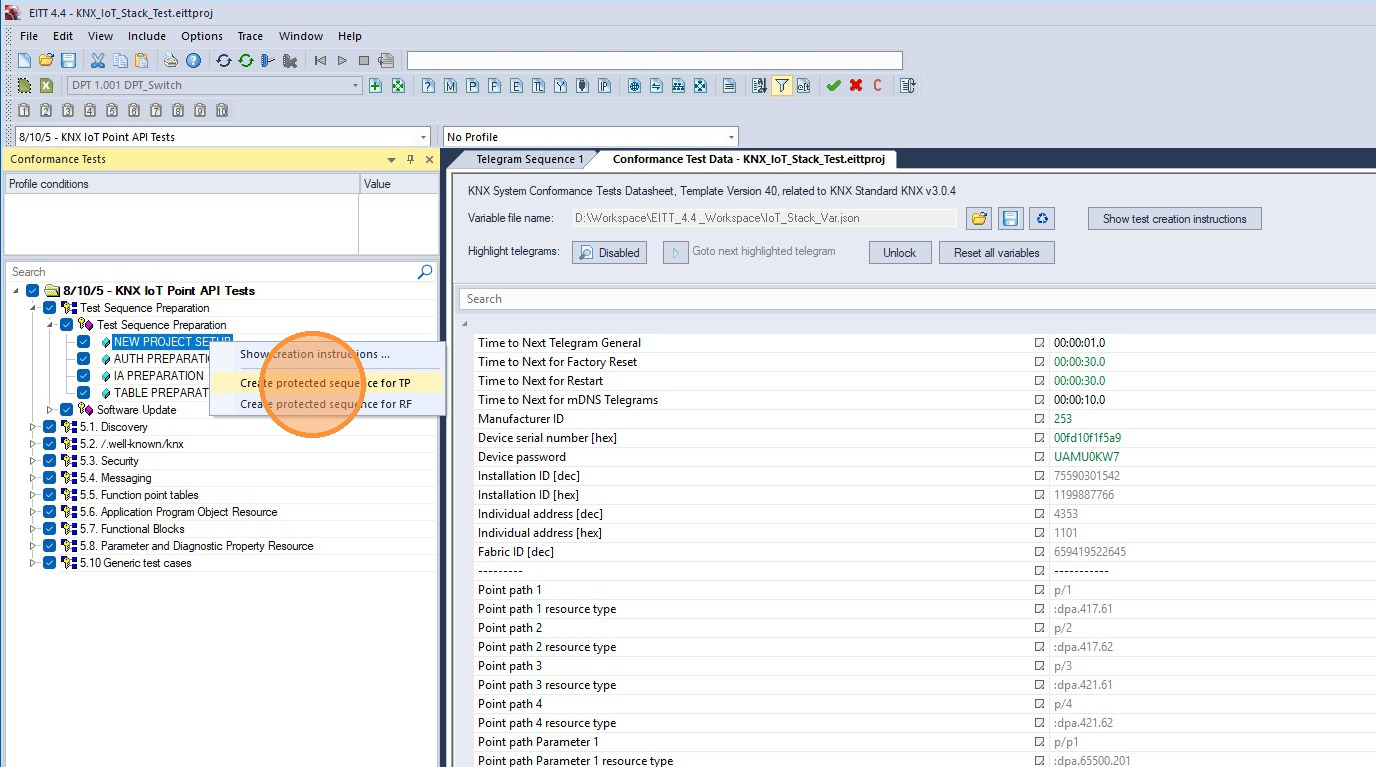
Right click the template and then click "NEW PROJECT SETUP"
Click "Create protected sequence for TP" and then click "OK"
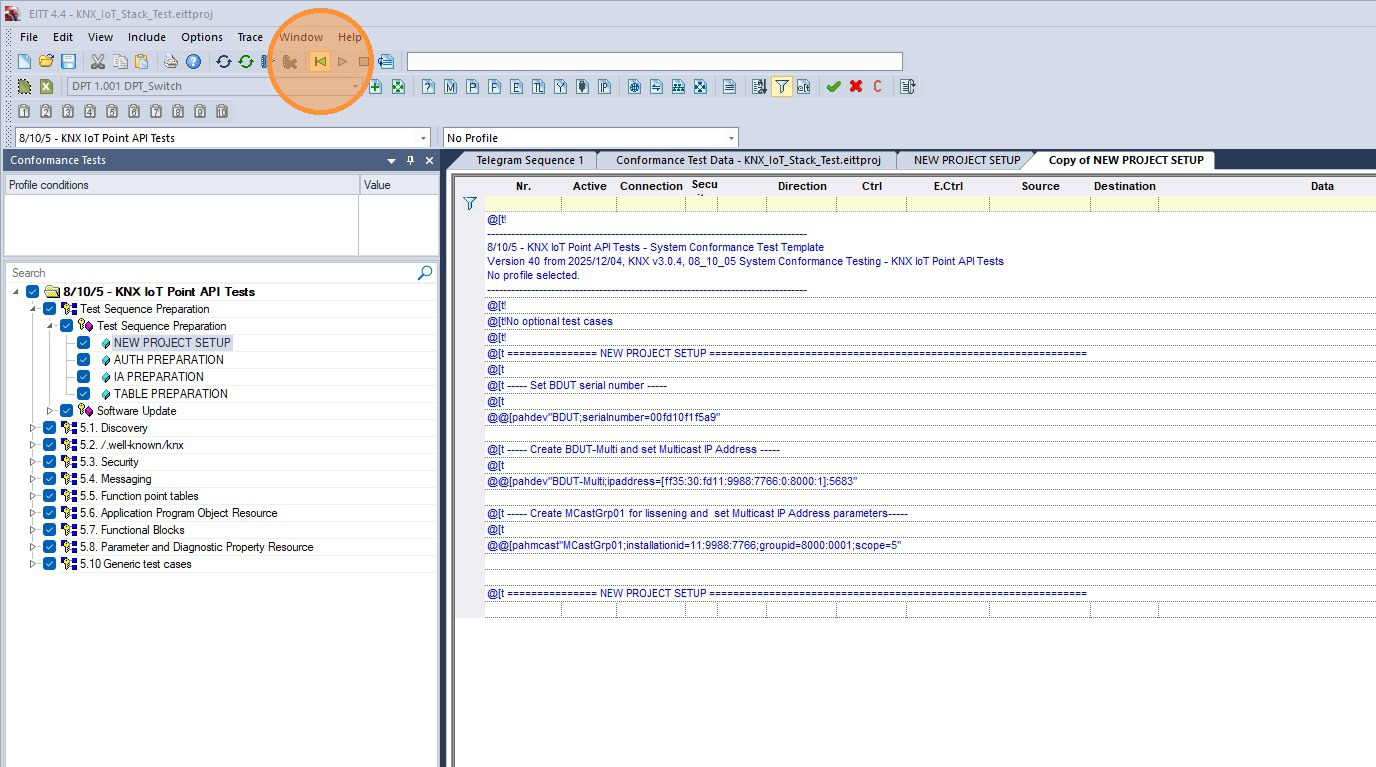
Click "Resets to the beginning of the current telegram sequence"
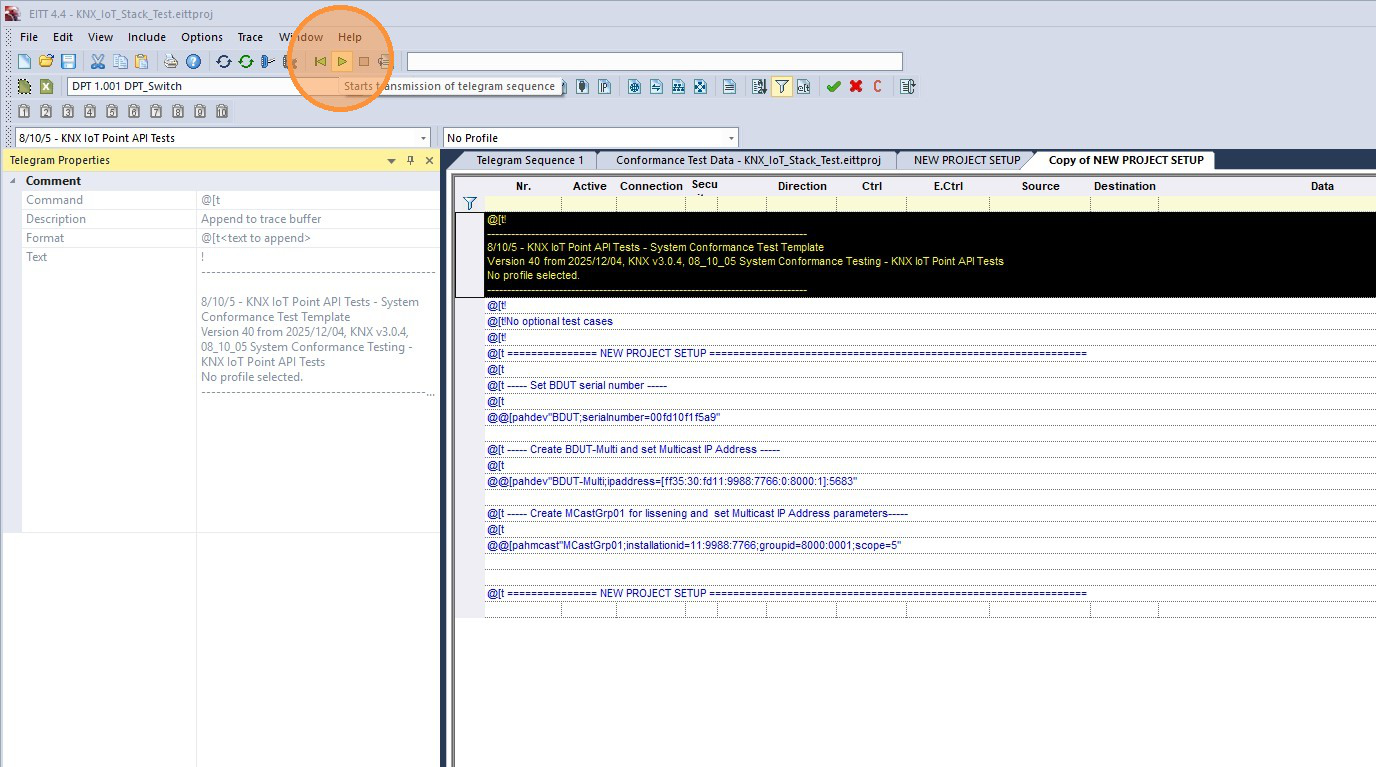
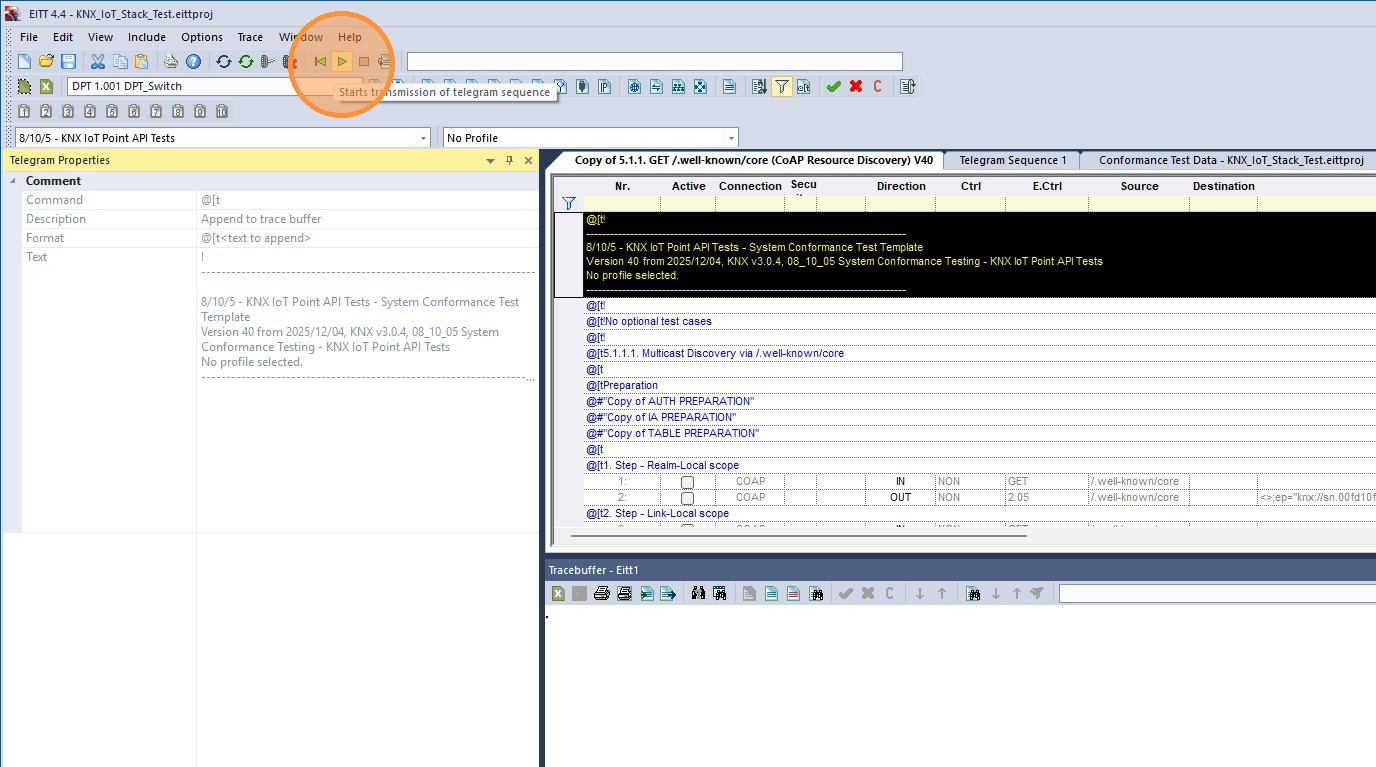
Click "Starts telegram sequence"
Create Test Sequences
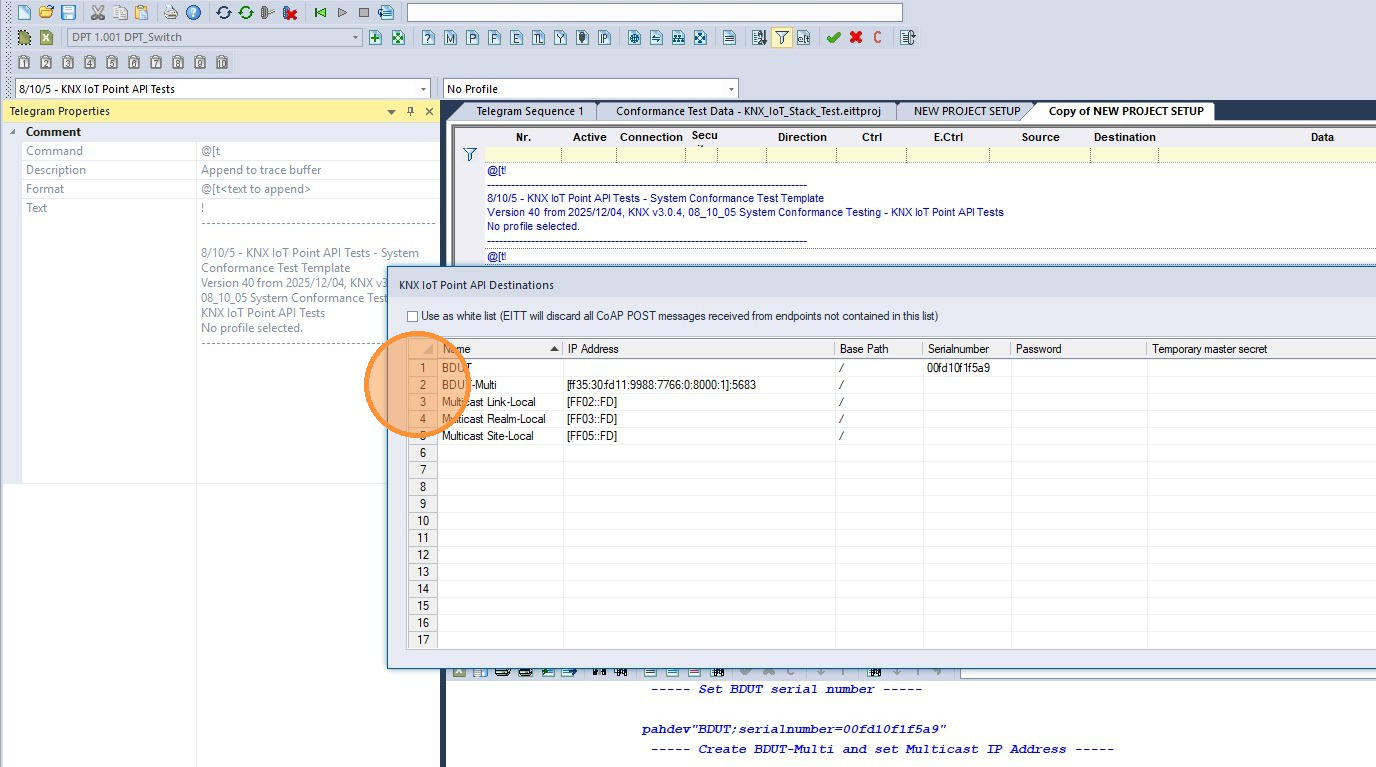
Confirm that the NEW PROJECT SETUP script fills BDUT-Multi
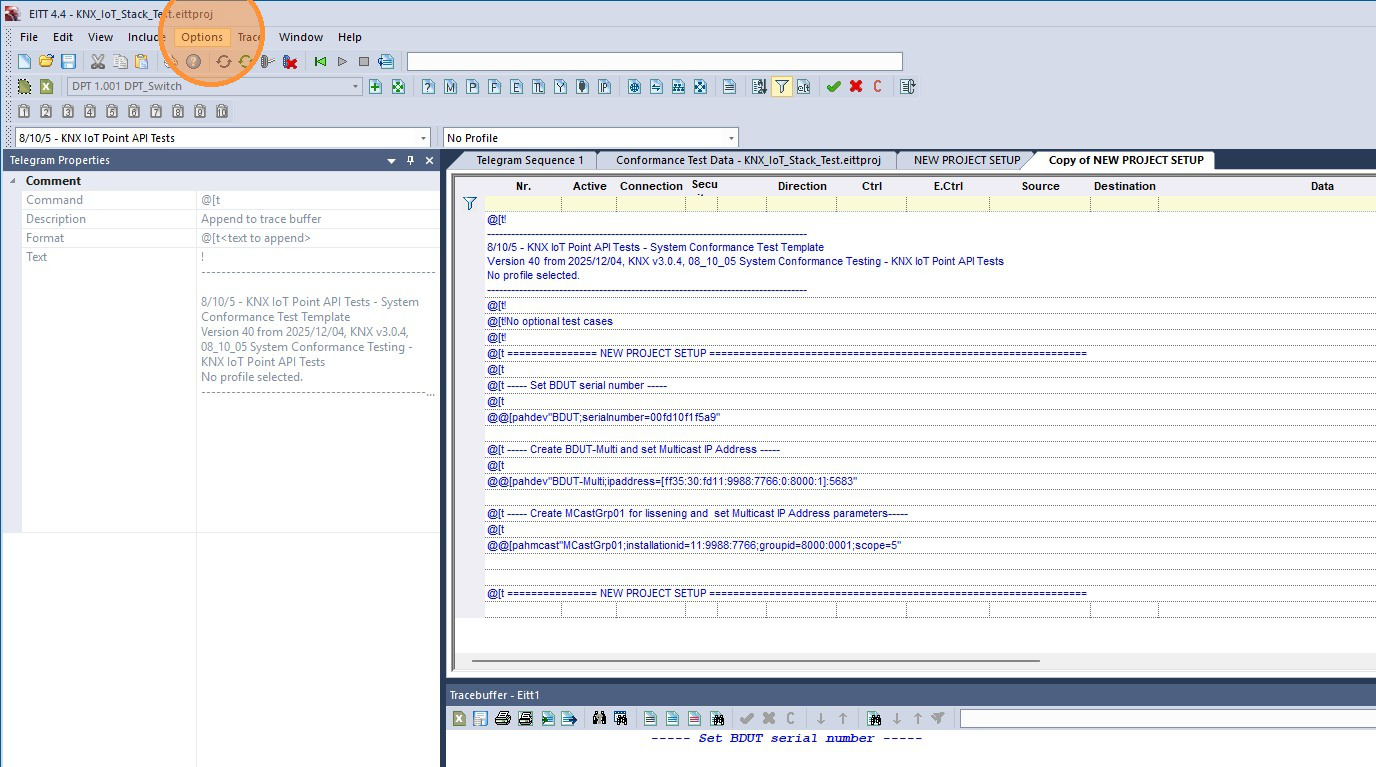
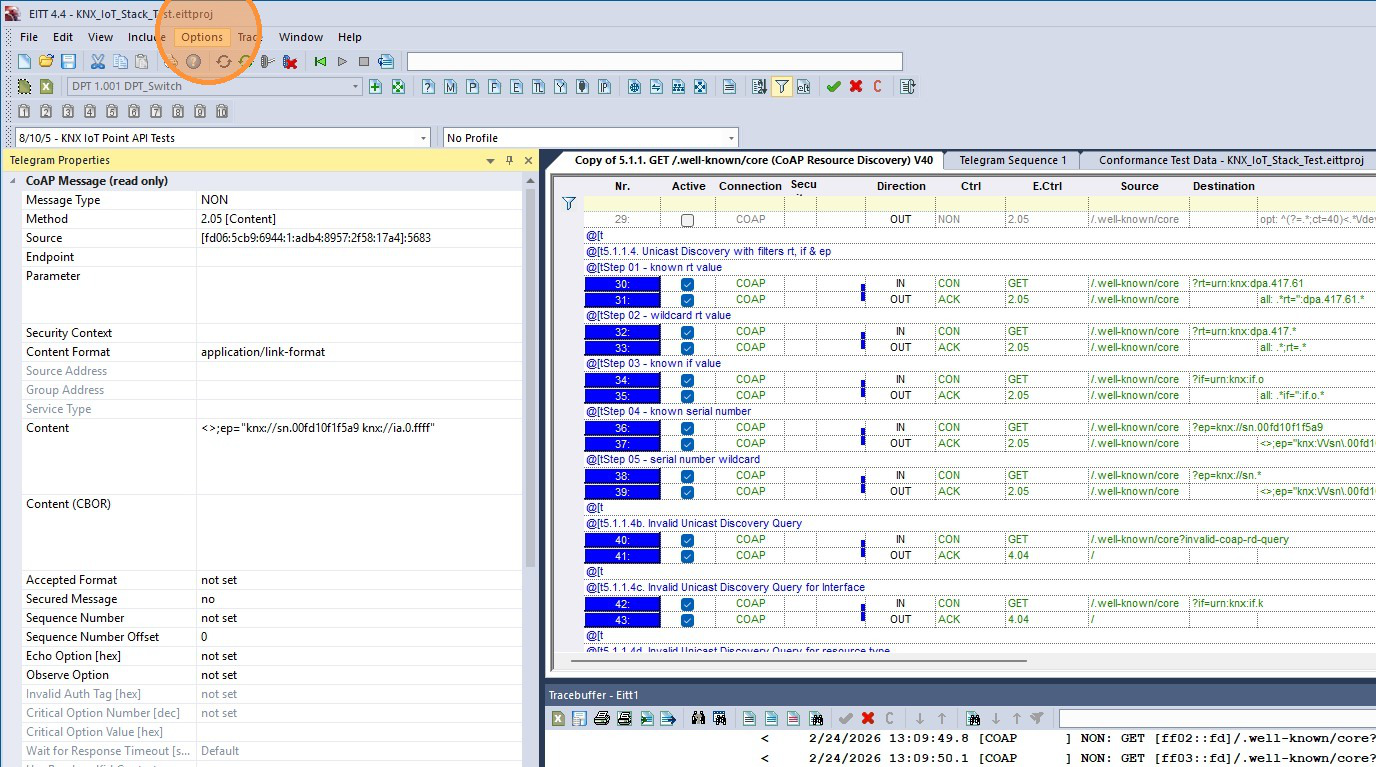
Click "Options"
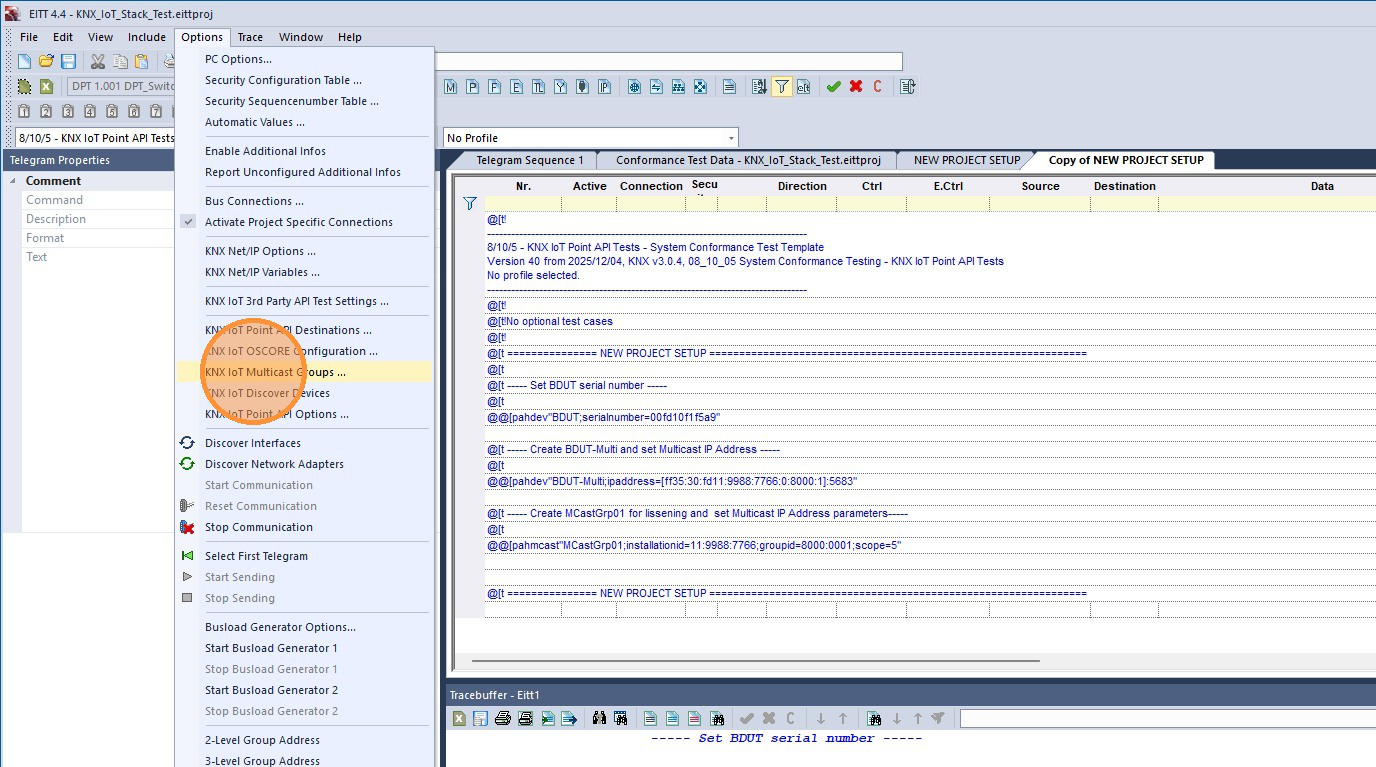
Click "KNX IoT Multicast Groups"
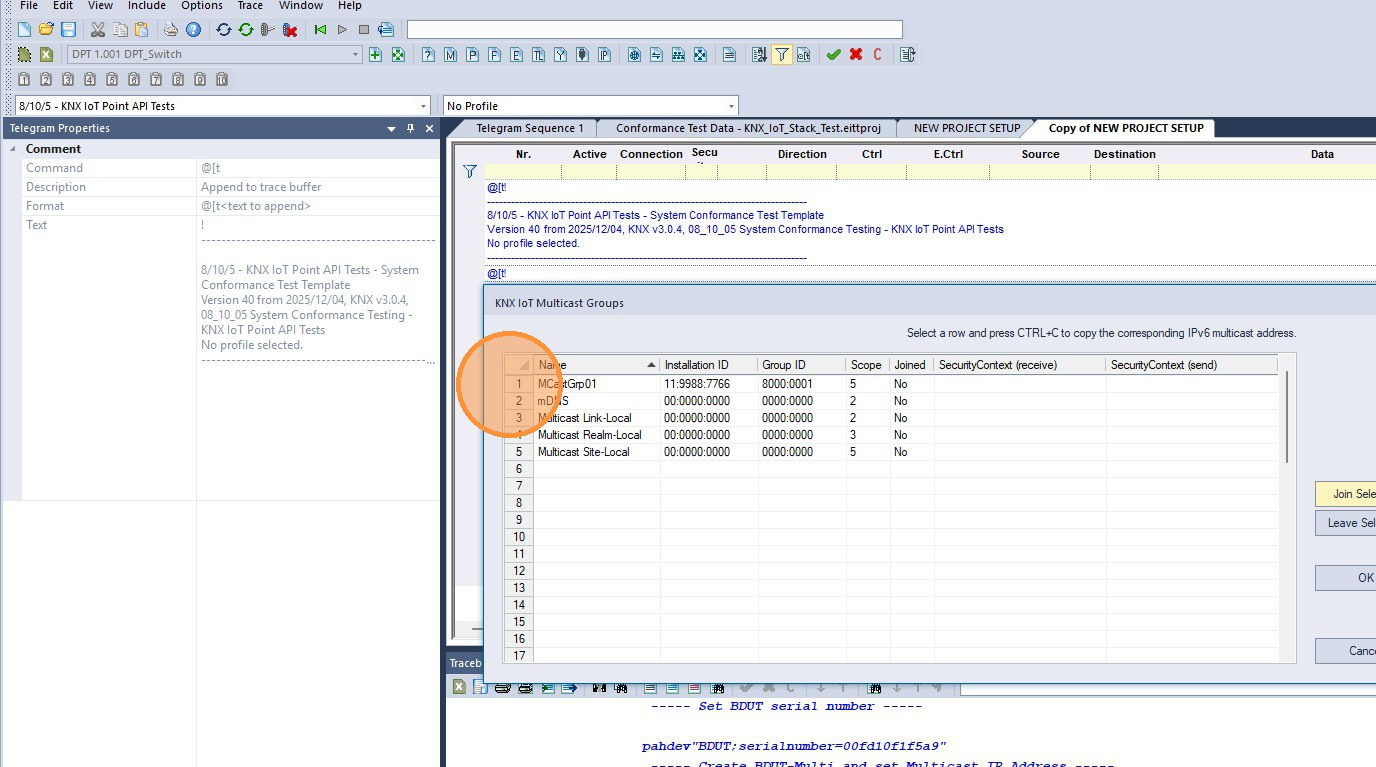
Confirm that the NEW PROJECT SETUP script fills MCastGrp01
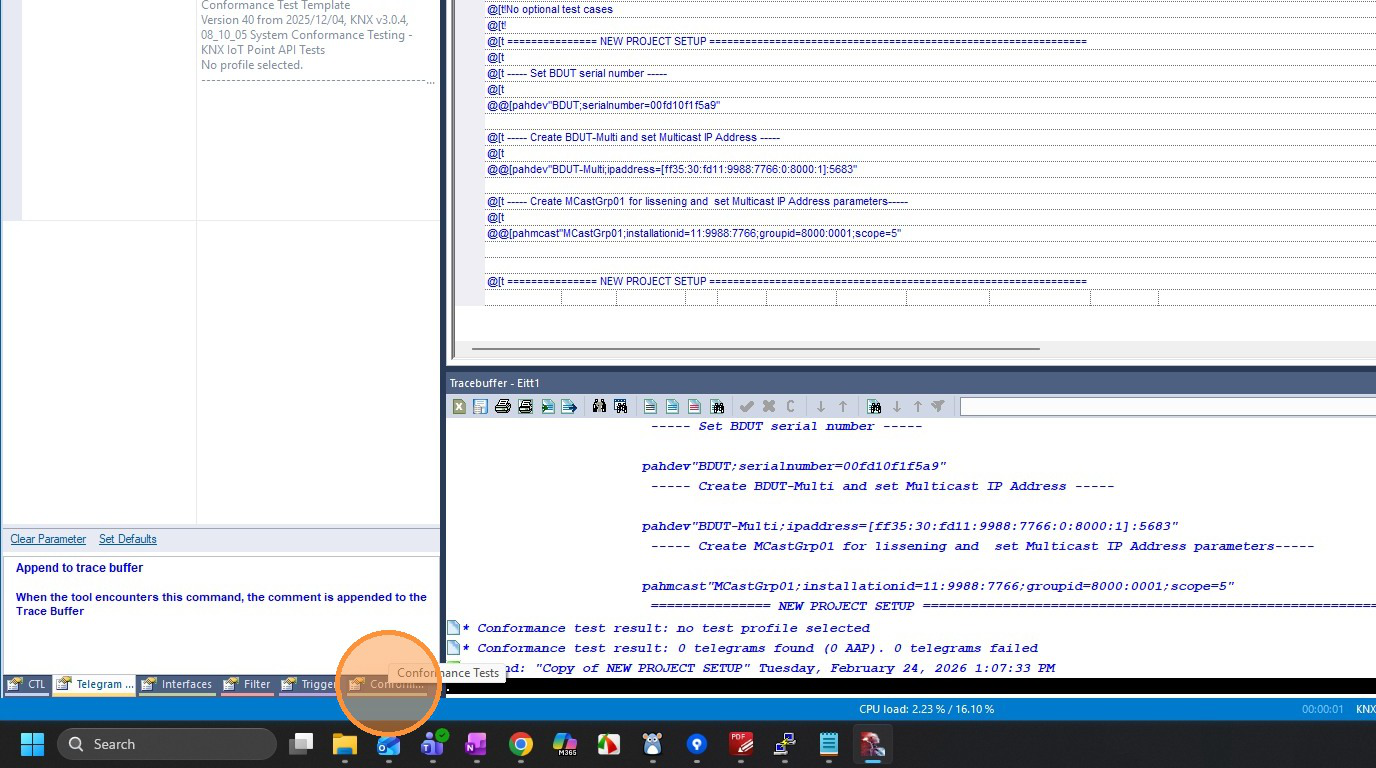
Click "Conformance Tests"
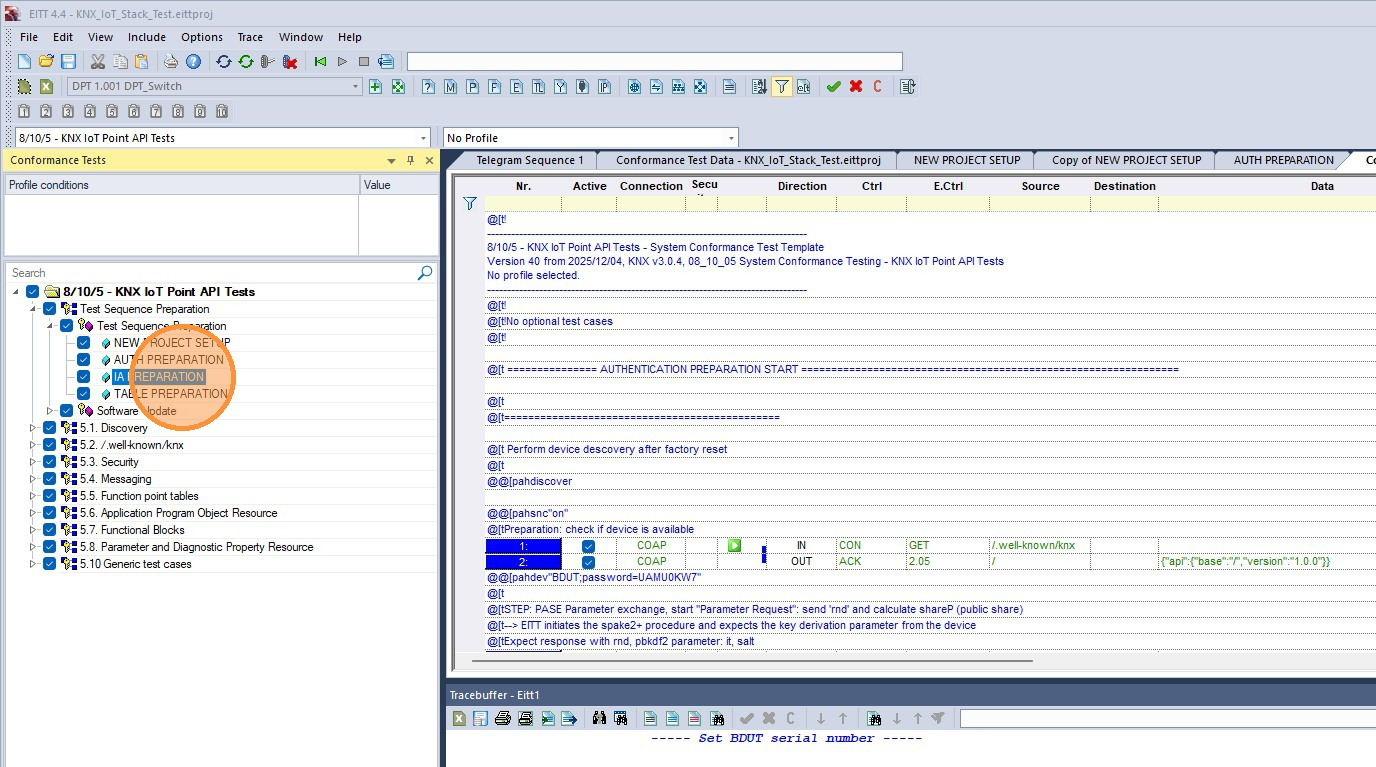
Create a test sequence for AUTH_PREPARATION
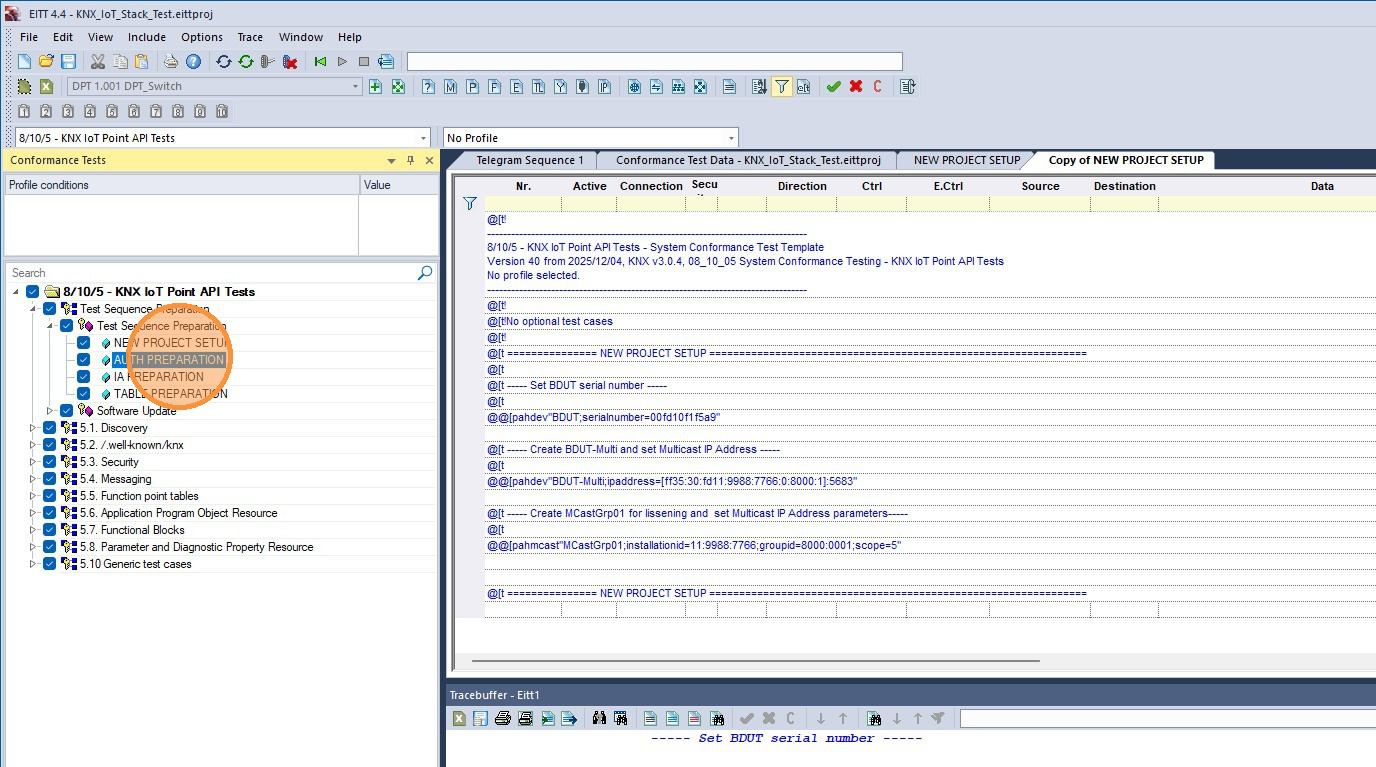
Create a test sequence for IA_PREPARATION
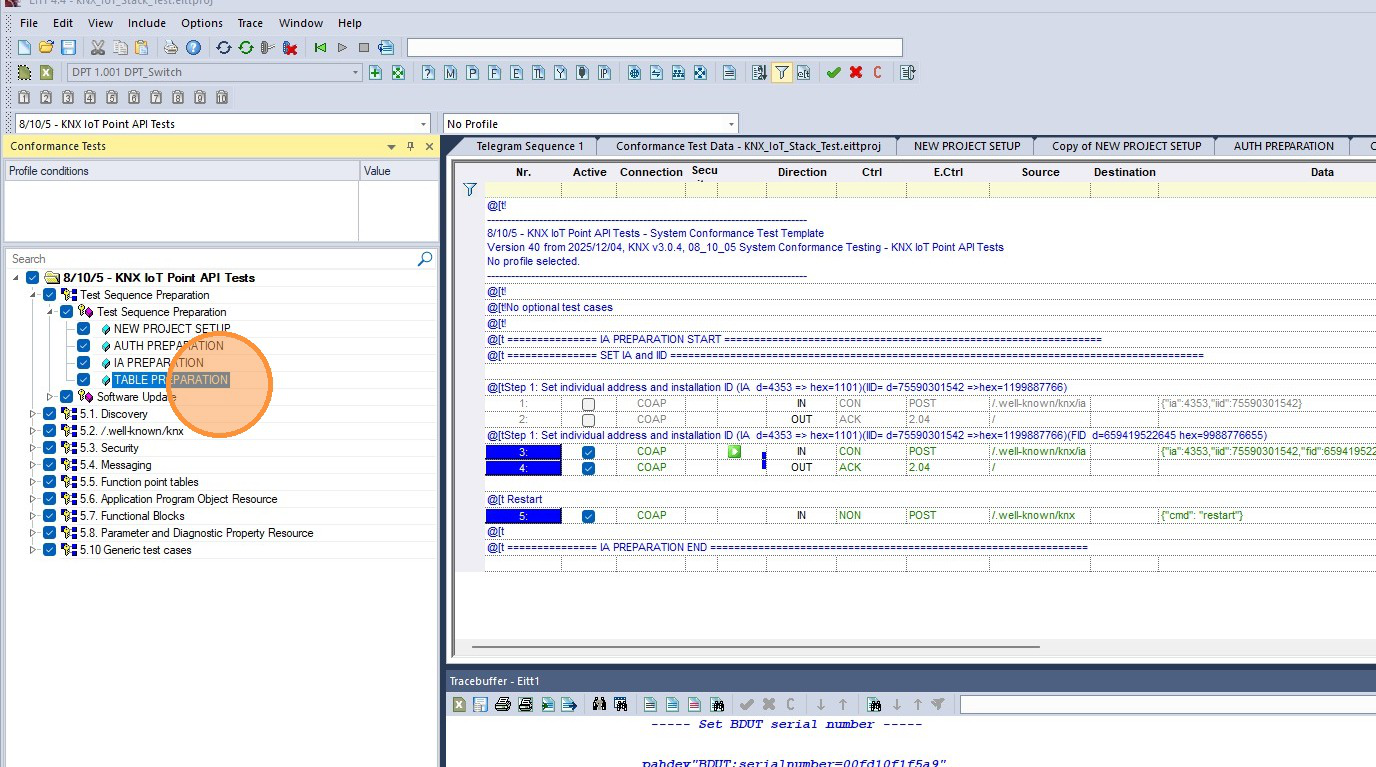
Create a test sequence for TABLE_PREPARATION
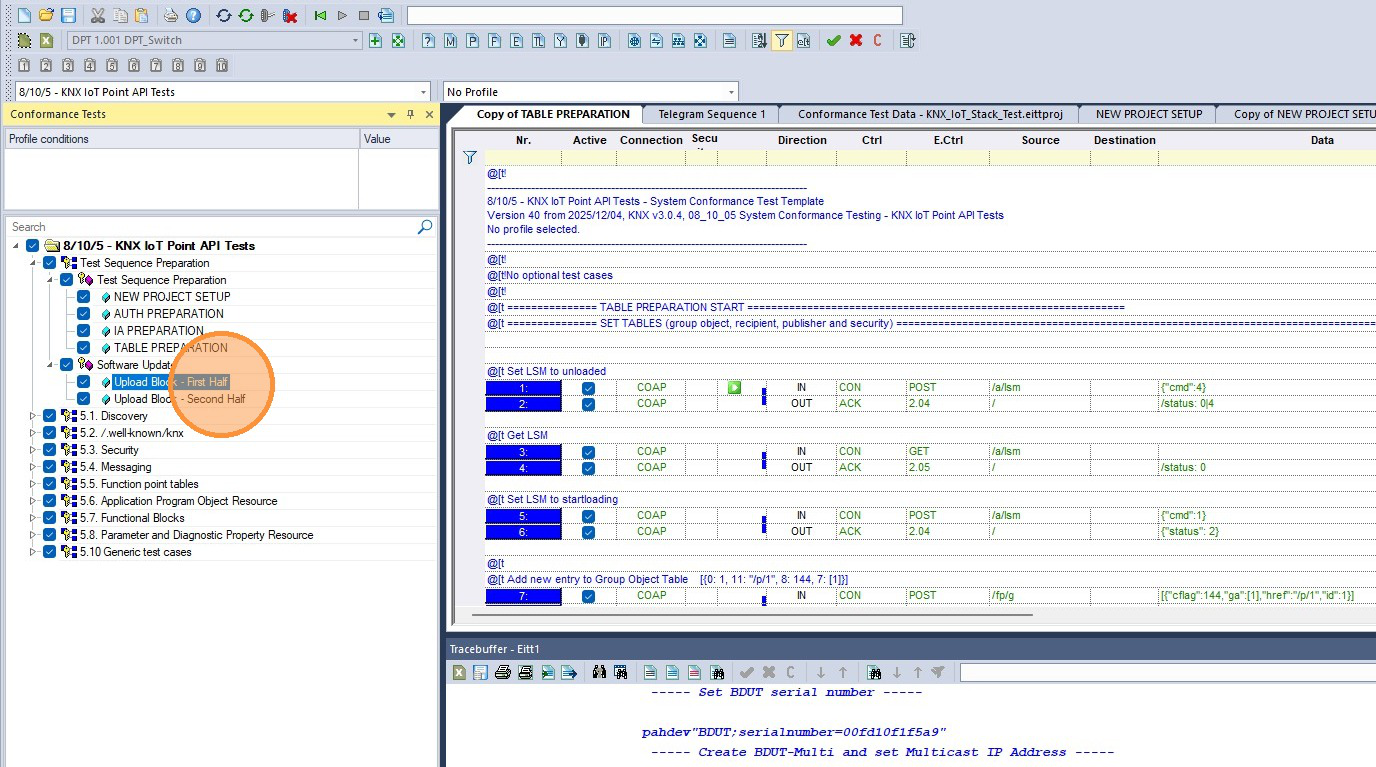
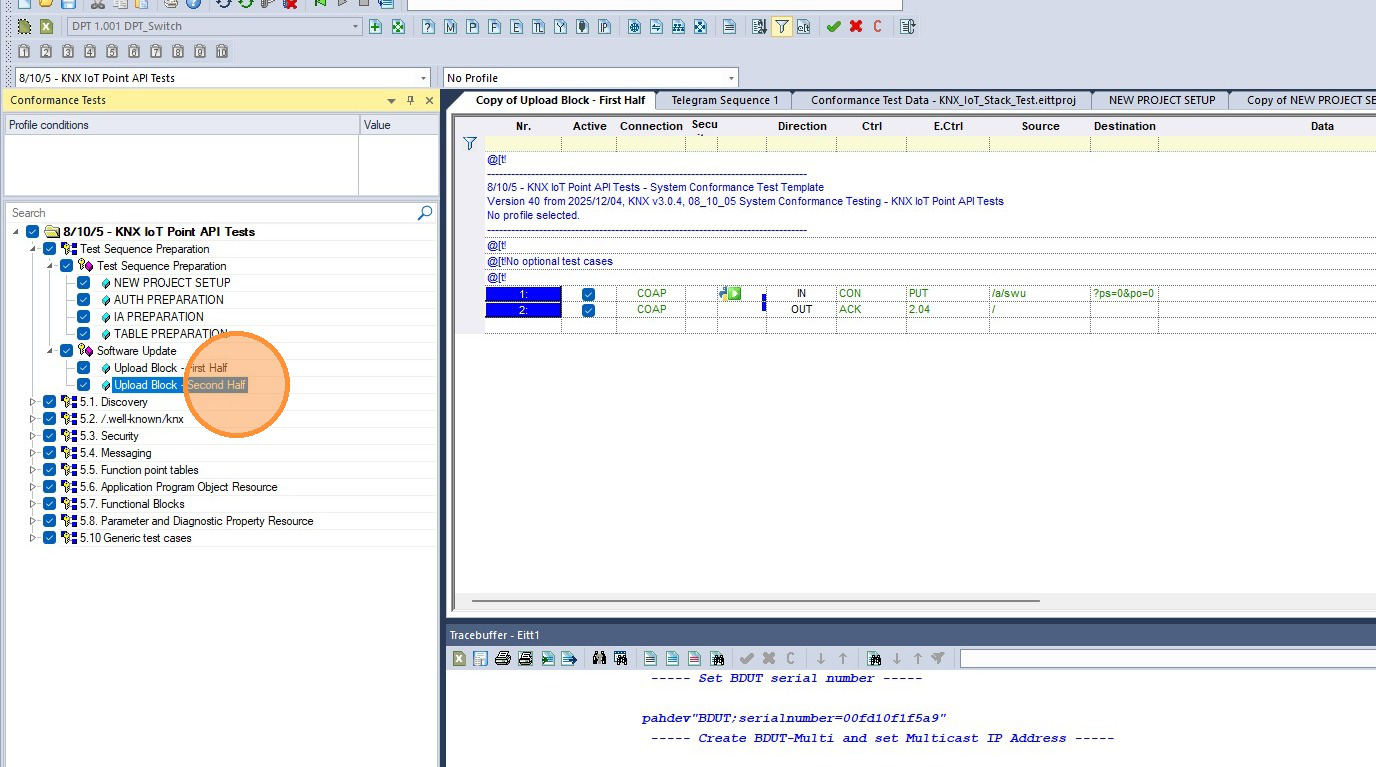
Create a test sequence for Upload Block - First Half
Create a test sequence for Upload Block - Second Half
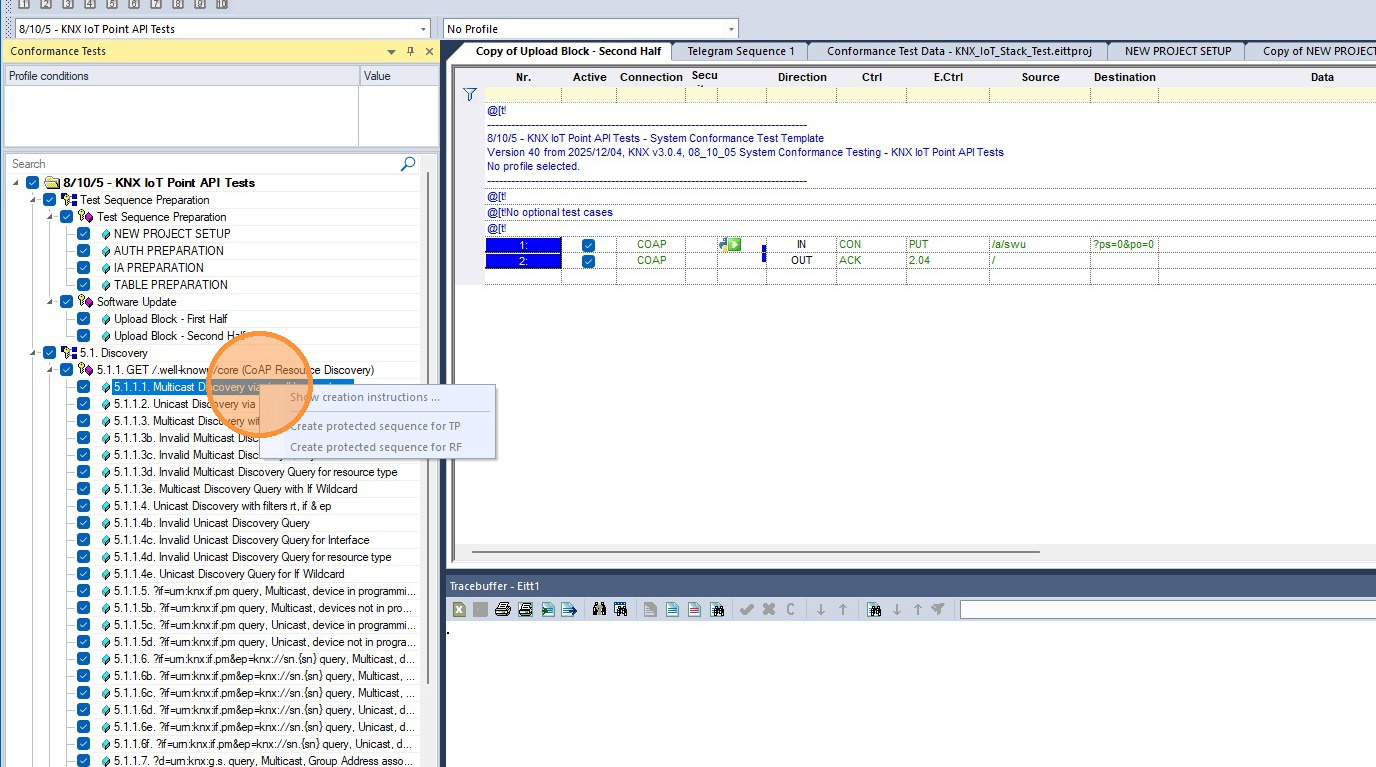
Create a test for test case 5.1.1.1
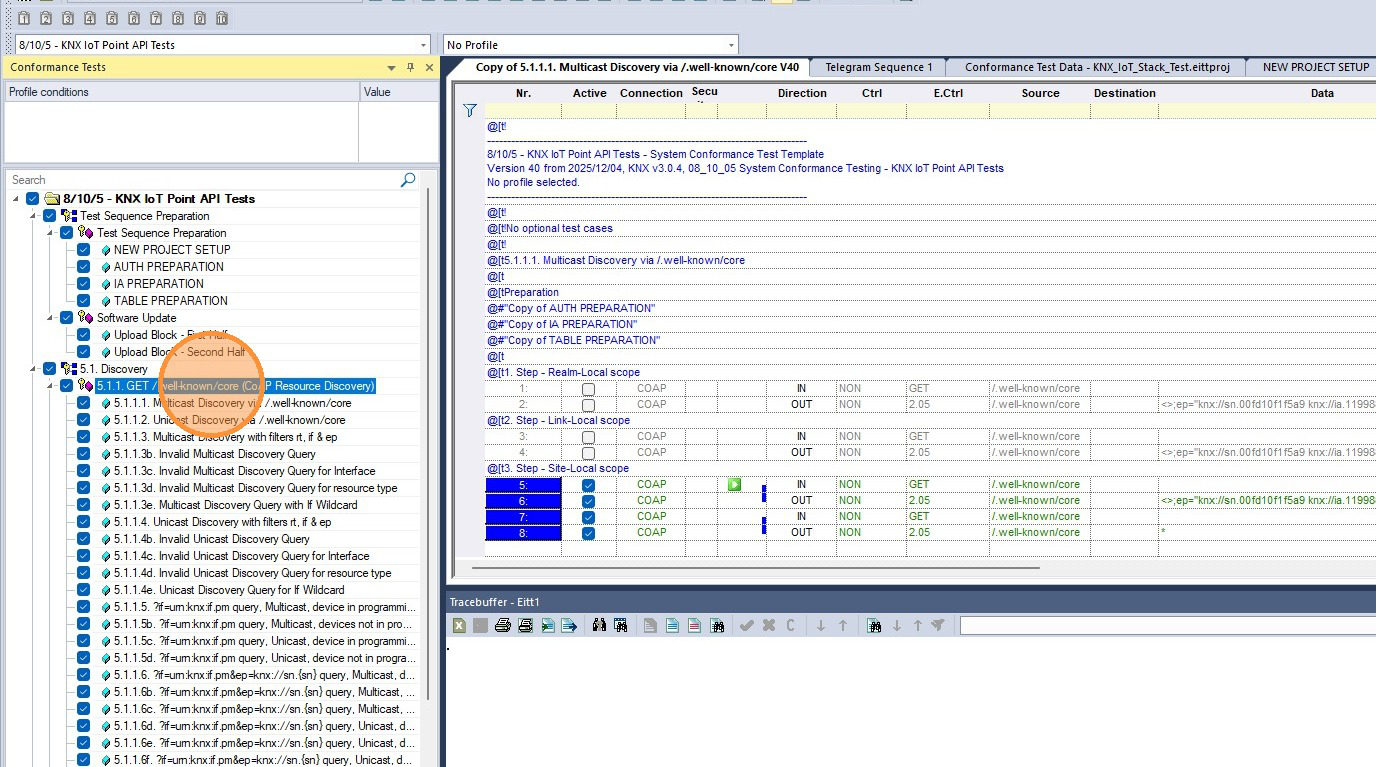
Create a test for test case 5.1.1 (all sub tests in one sequence)
Configure Network and Run Tests
Go to the "CTL" tab
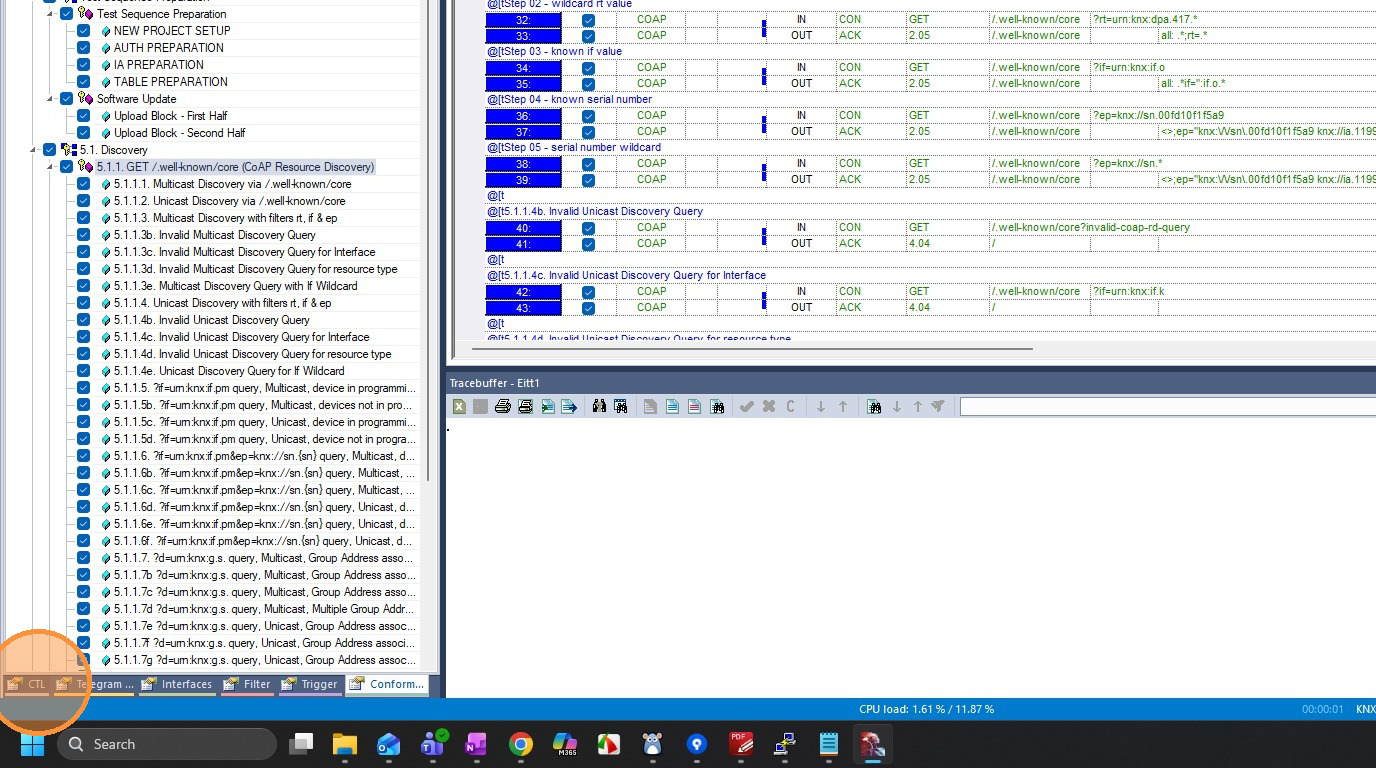
Verify the created tests in the CTL tab (always use copied scripts to perform the test)
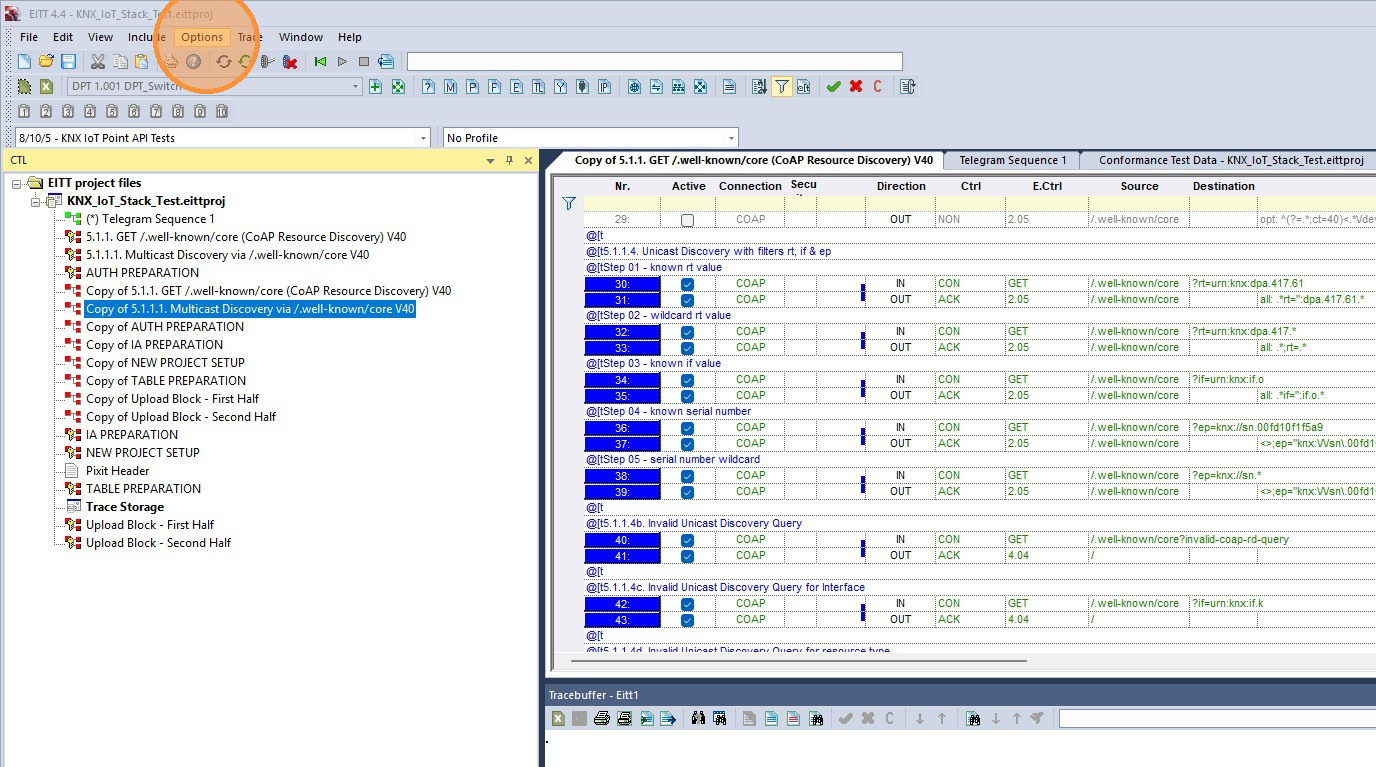
Click "Options"
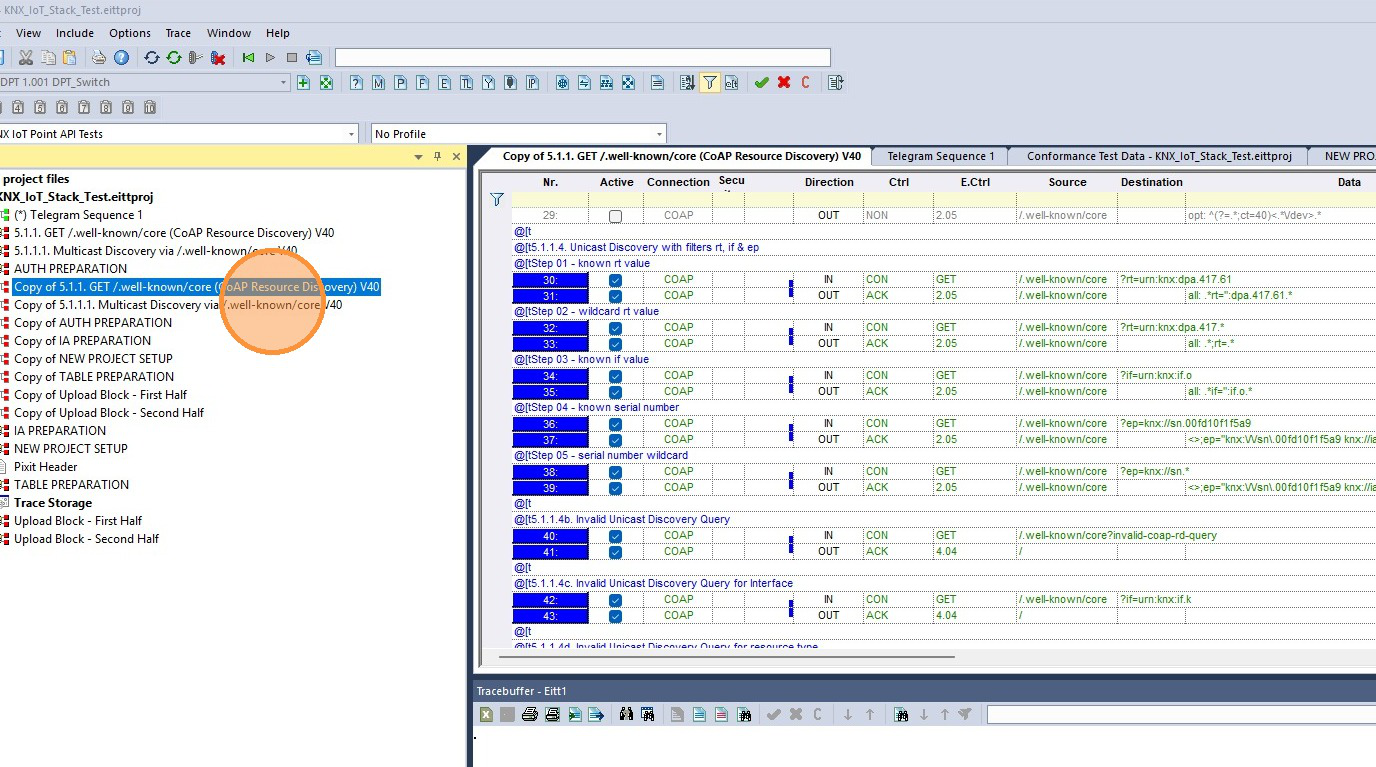
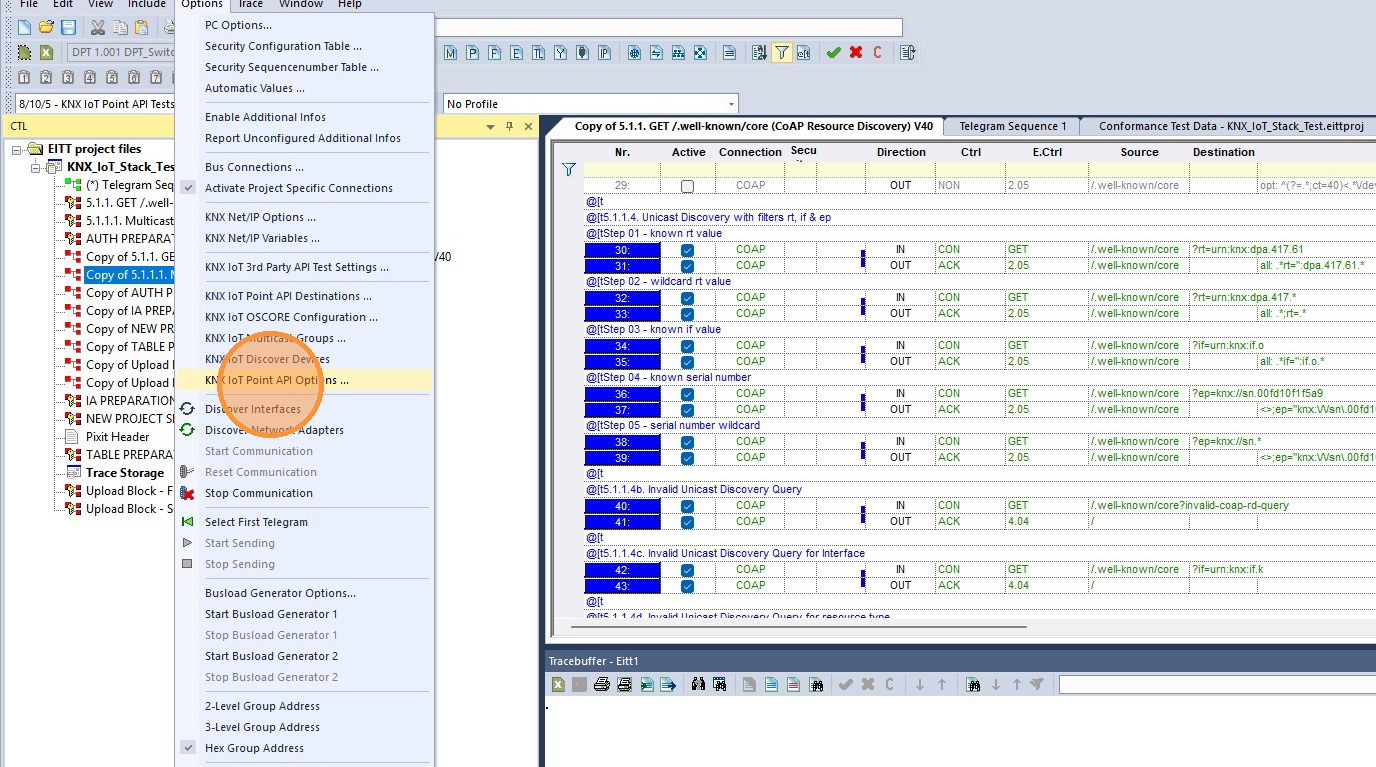
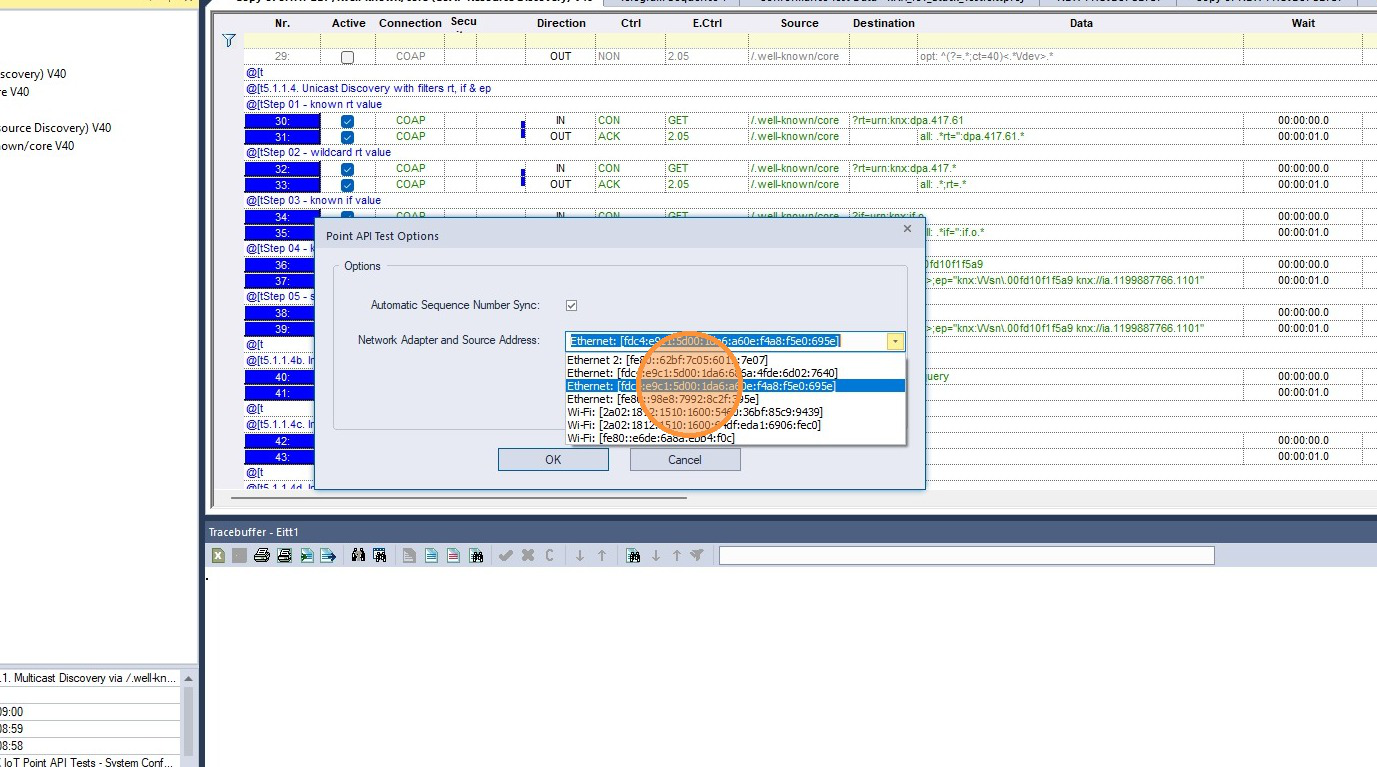
Go to "KNXIoT Point API Options"
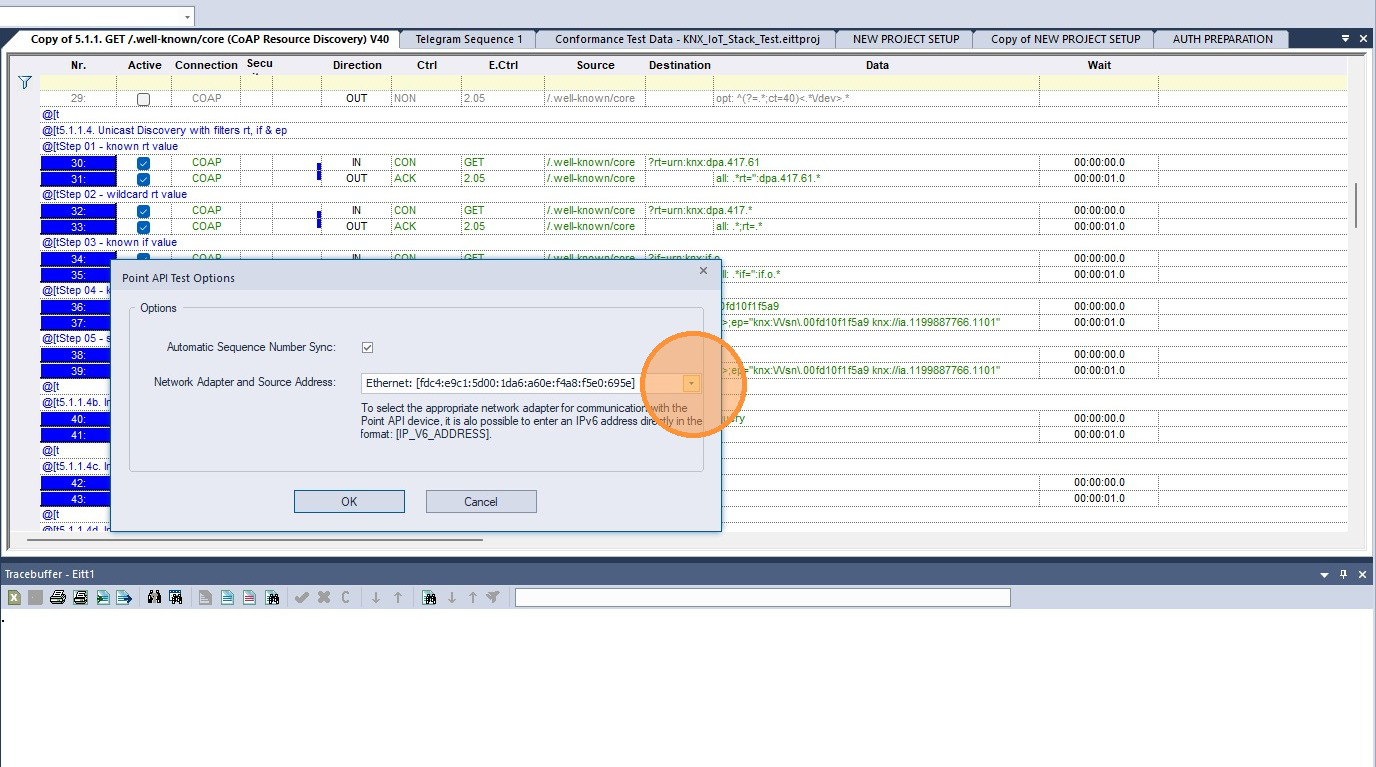
Select the correct adapter or keep it empty for virtual devices on the same PC
Select the network adapter, for example Ethernet: [fdc4:e9c1:5d00:1da6:a60e:f4a8:f5e0:695e]
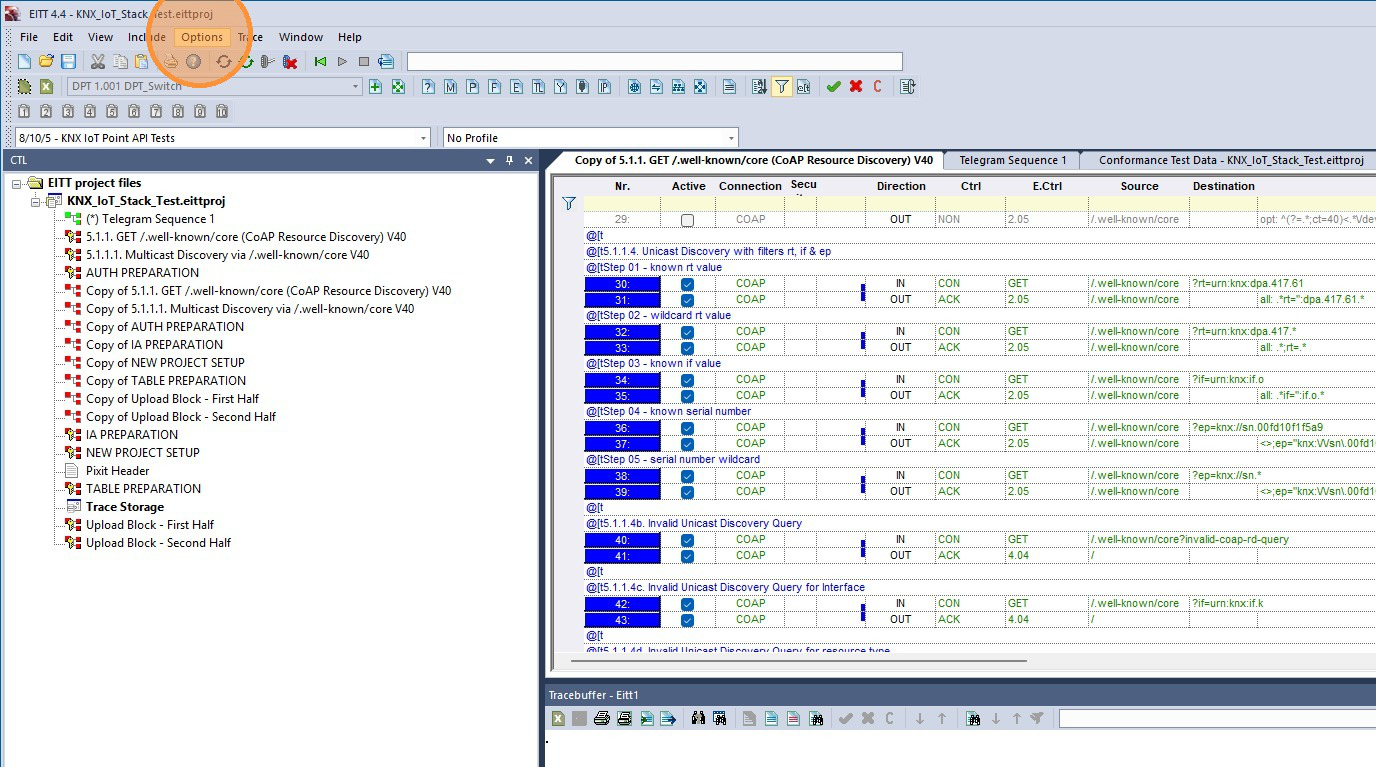
Click "Options"
Click "KNX IoT Discover Devices"
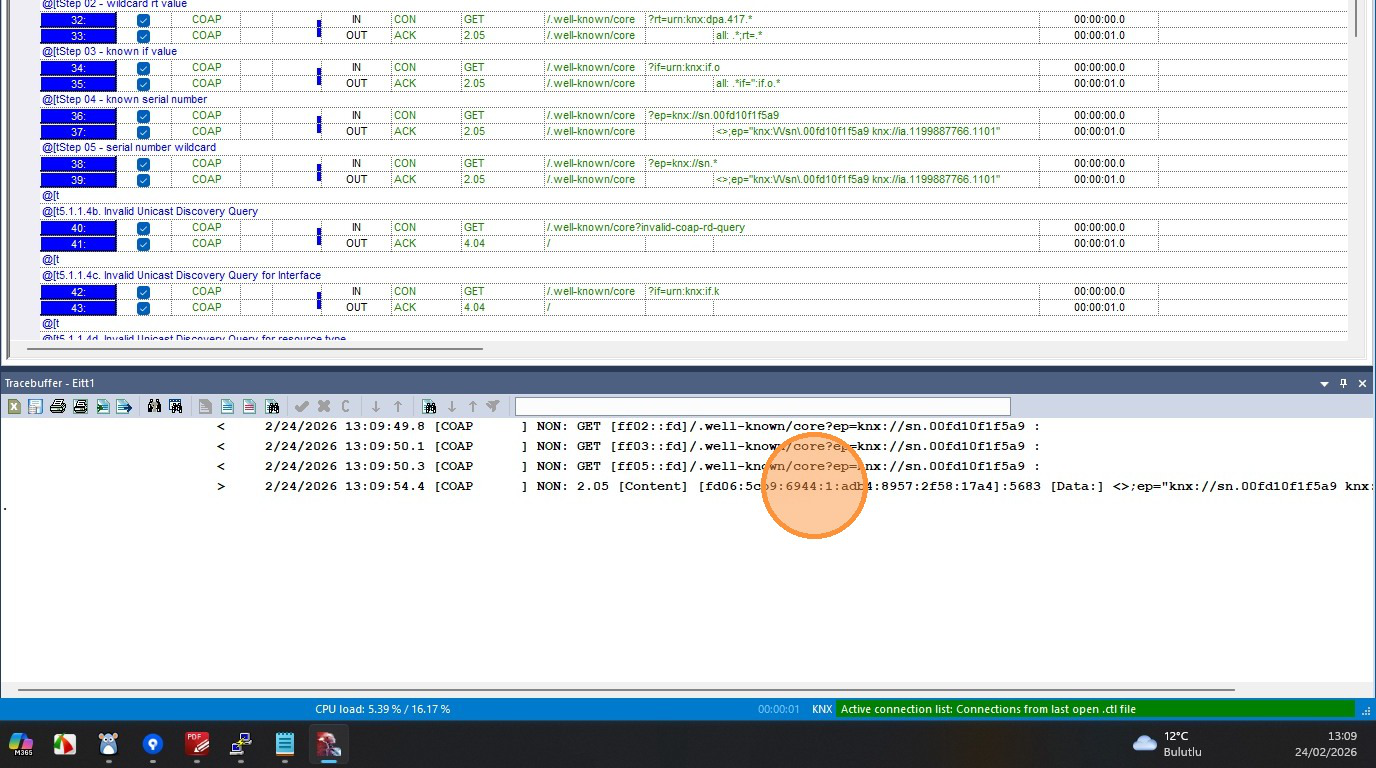
Verify that DUT responds to discovery telegrams
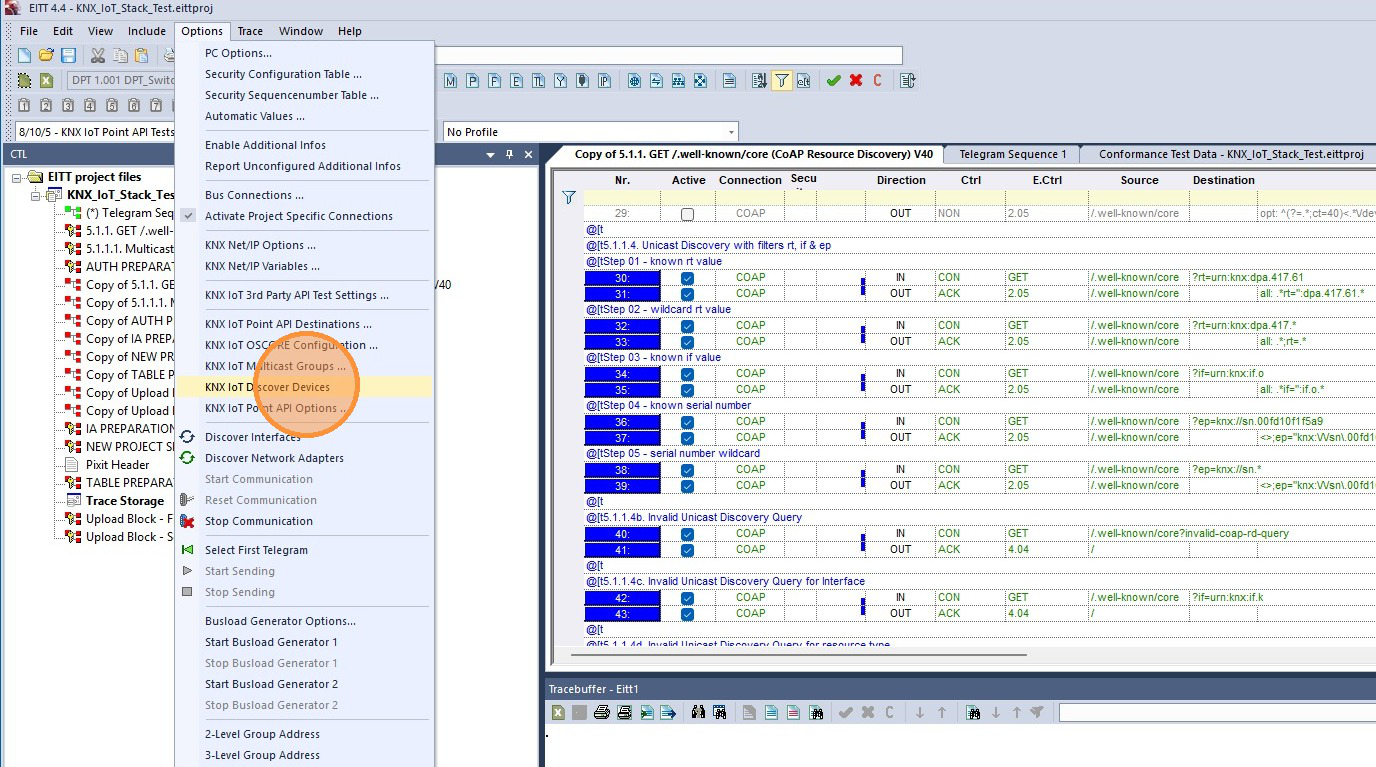
Click "Options"
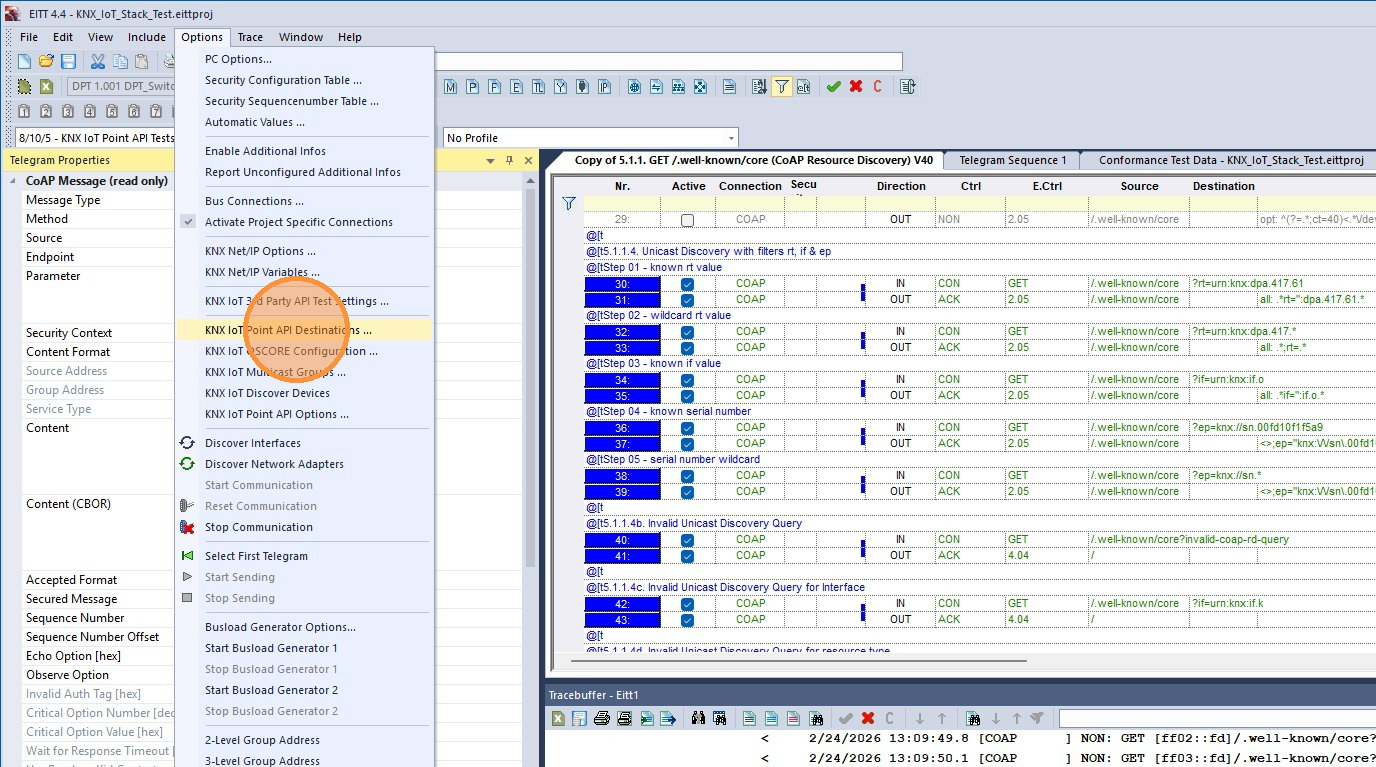
Click "KNX IoT Point API Destinations"
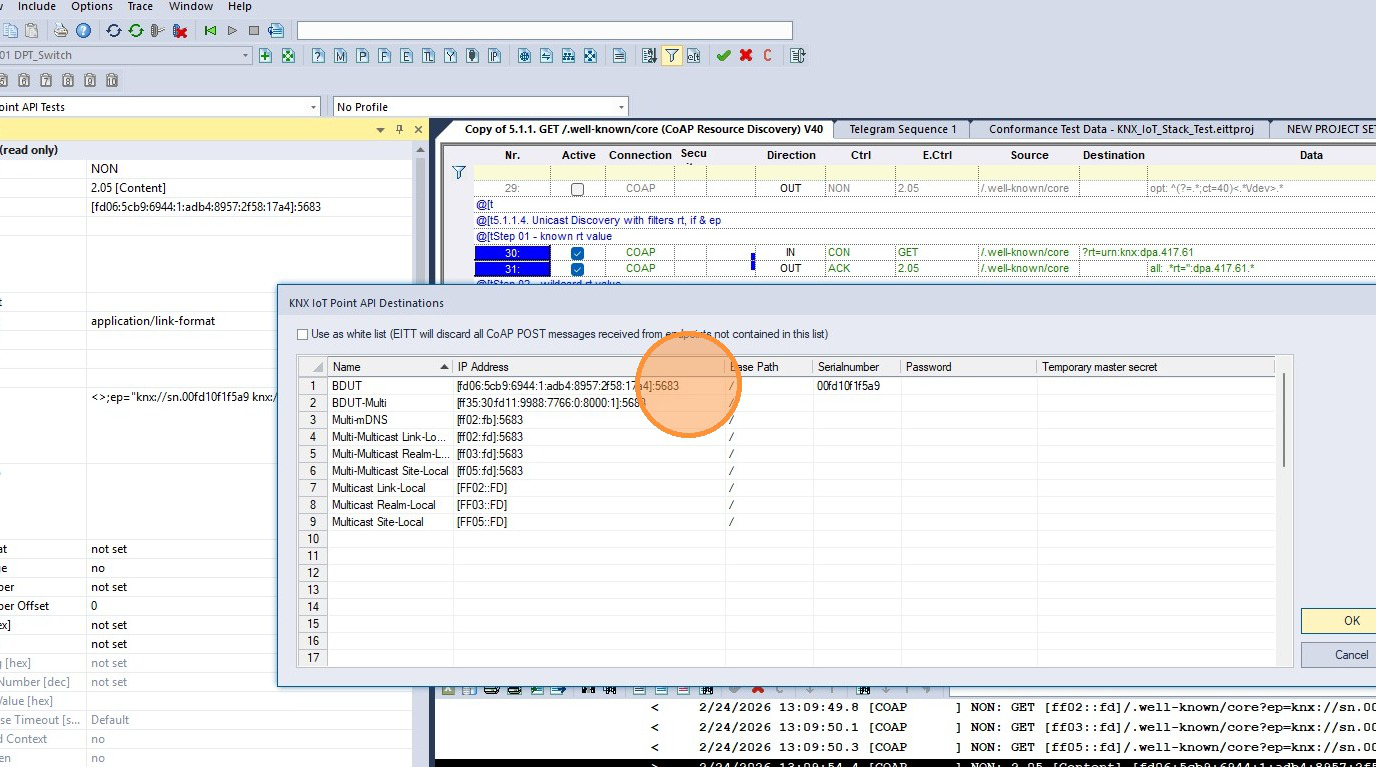
Check whether the unicast address of DUT contains a value
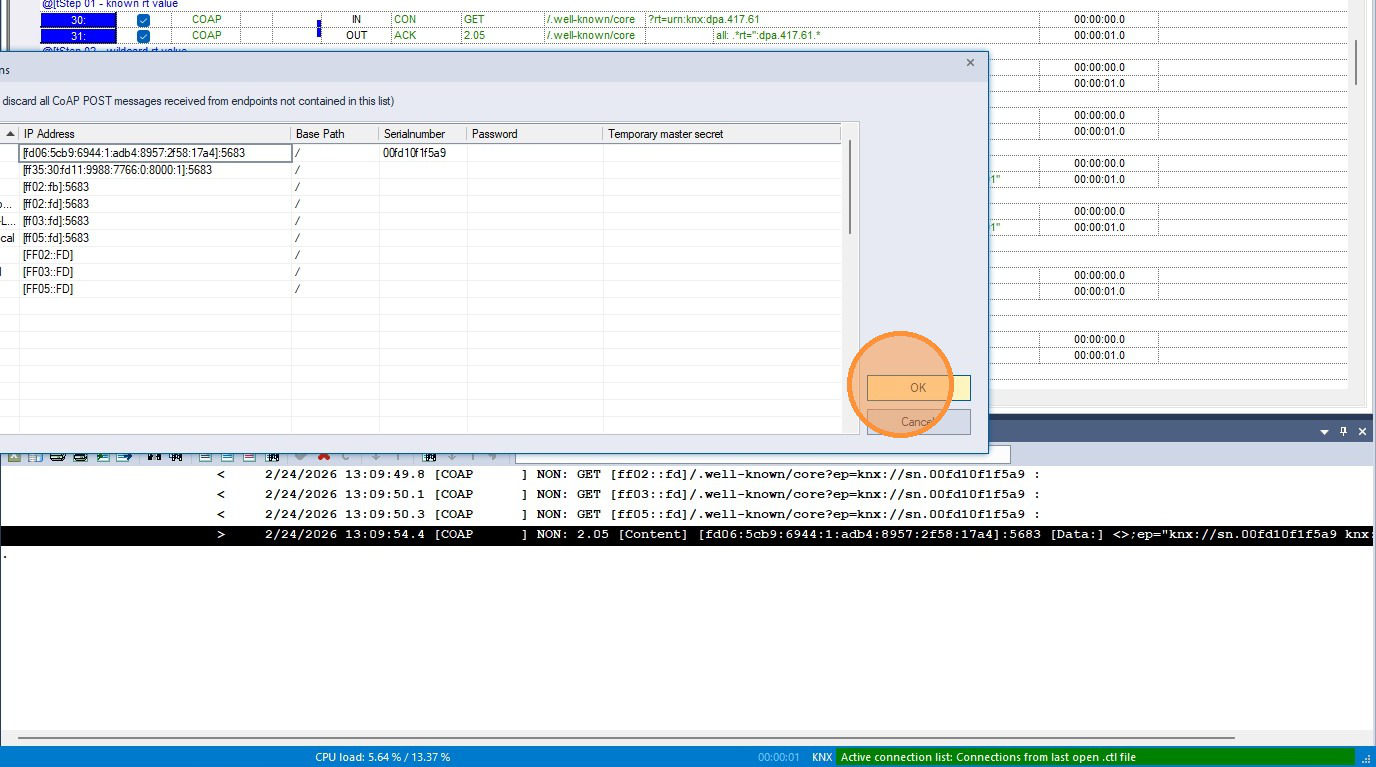
Click "OK"
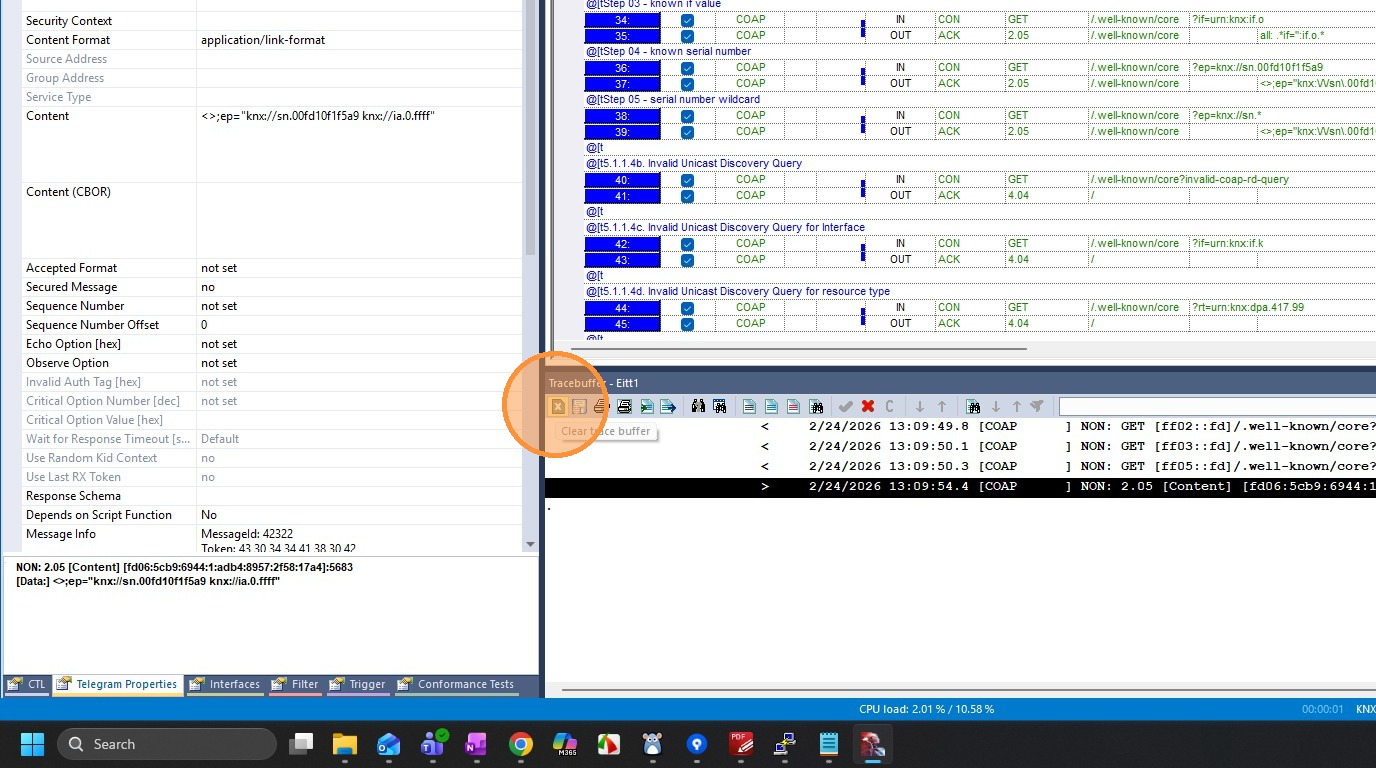
Click "Clear trace buffer"
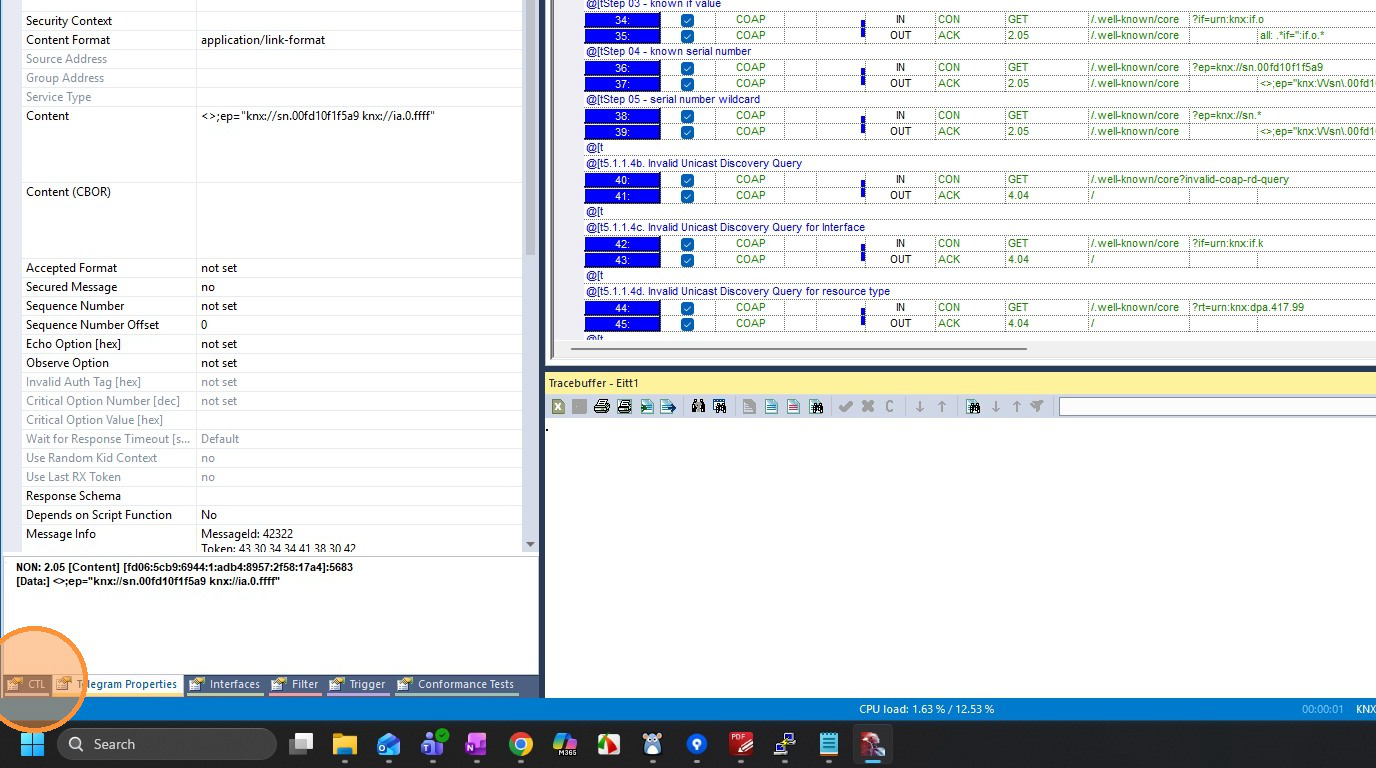
Go to the "CTL" tab
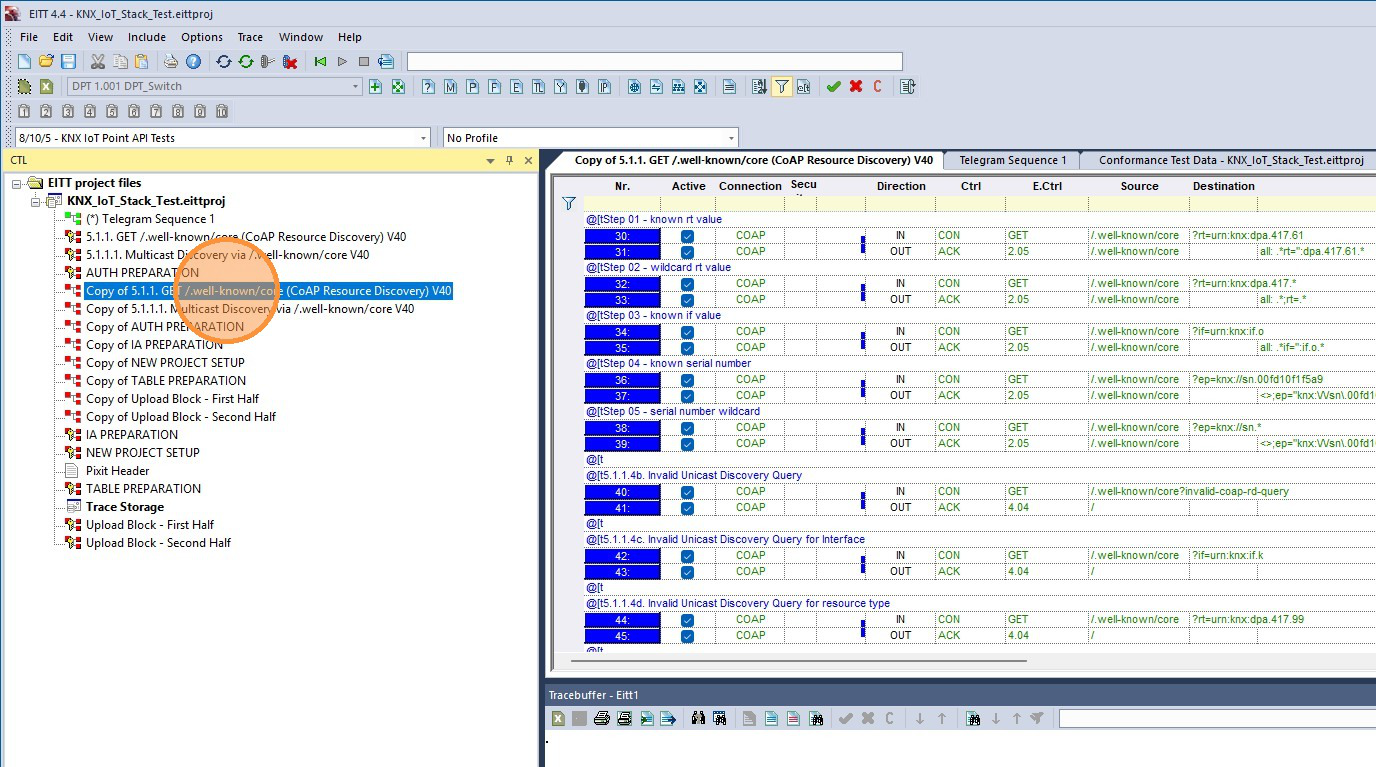
Double-click "Copy of 5.1.1. GET /.well-known/core"
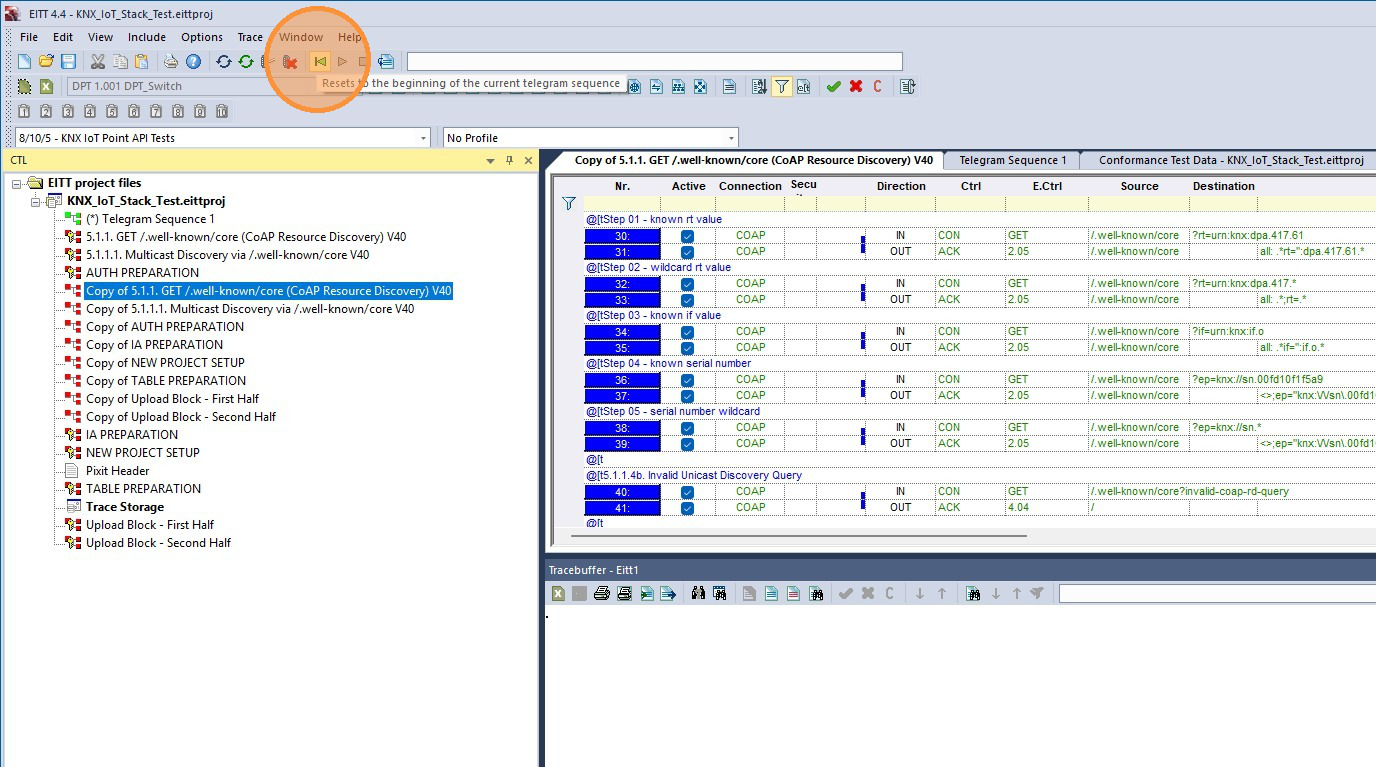
Click "Resets to the beginning of the current telegram sequence"
Click "Start telegram sequence"
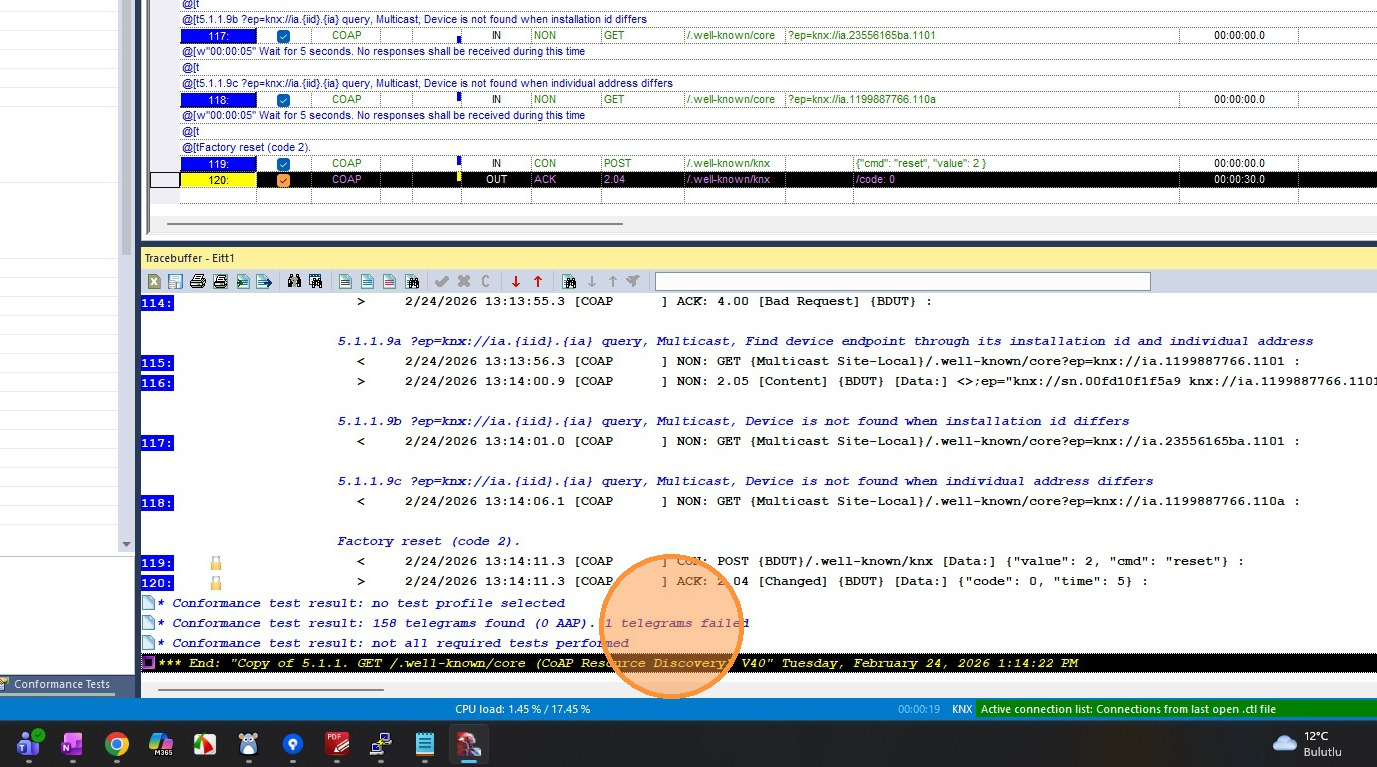
After the test finishes, check the result
Go to "Previous failed telegram"
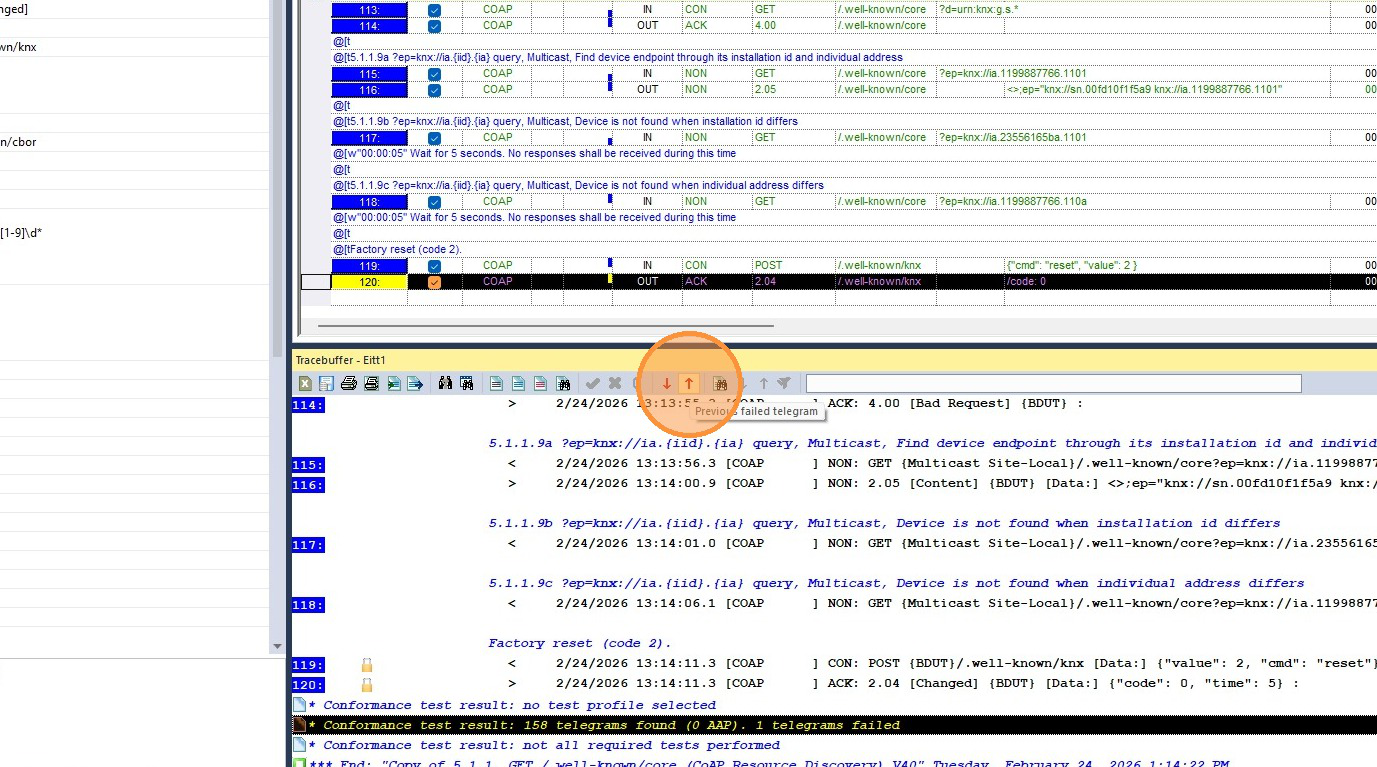
Evaluate the failing telegrams