Device Diagnostics
This section explains how to debug a single KNX device and runtime communication between KNX devices. These diagnostic techniques help stack developers implement device functionality and help system integrators verify correct communication.
Diagnostics with ETS
ETS supports several options to analyze a device individually or at runtime. For an ETS introduction and installation details, see Stack Project Example.
- Device Info shows detailed data, usually for a commissioned device (Device Info documentation).
- Monitoring shows runtime details such as a "switch on" telegram (ETS monitor documentation).
- Project Check.
- Group Diagnostics.
A full list of ETS monitoring features is available in the Monitor functions documentation.
Diagnostics with Wireshark
Wireshark is a network protocol analyzer that captures and inspects packets on a network. This section shows how to export security credentials from ETS and configure Wireshark to decrypt and analyze KNX IoT CoAP traffic.
Prerequisite: An ETS project with a KNX IoT area, devices, and configured group objects.
ETS Credential Export
- In the panel drop-down menu, go to All Panels and select Reports.
- In Reports, select Project Security to view the OSCORE security configuration for resources and group addresses.
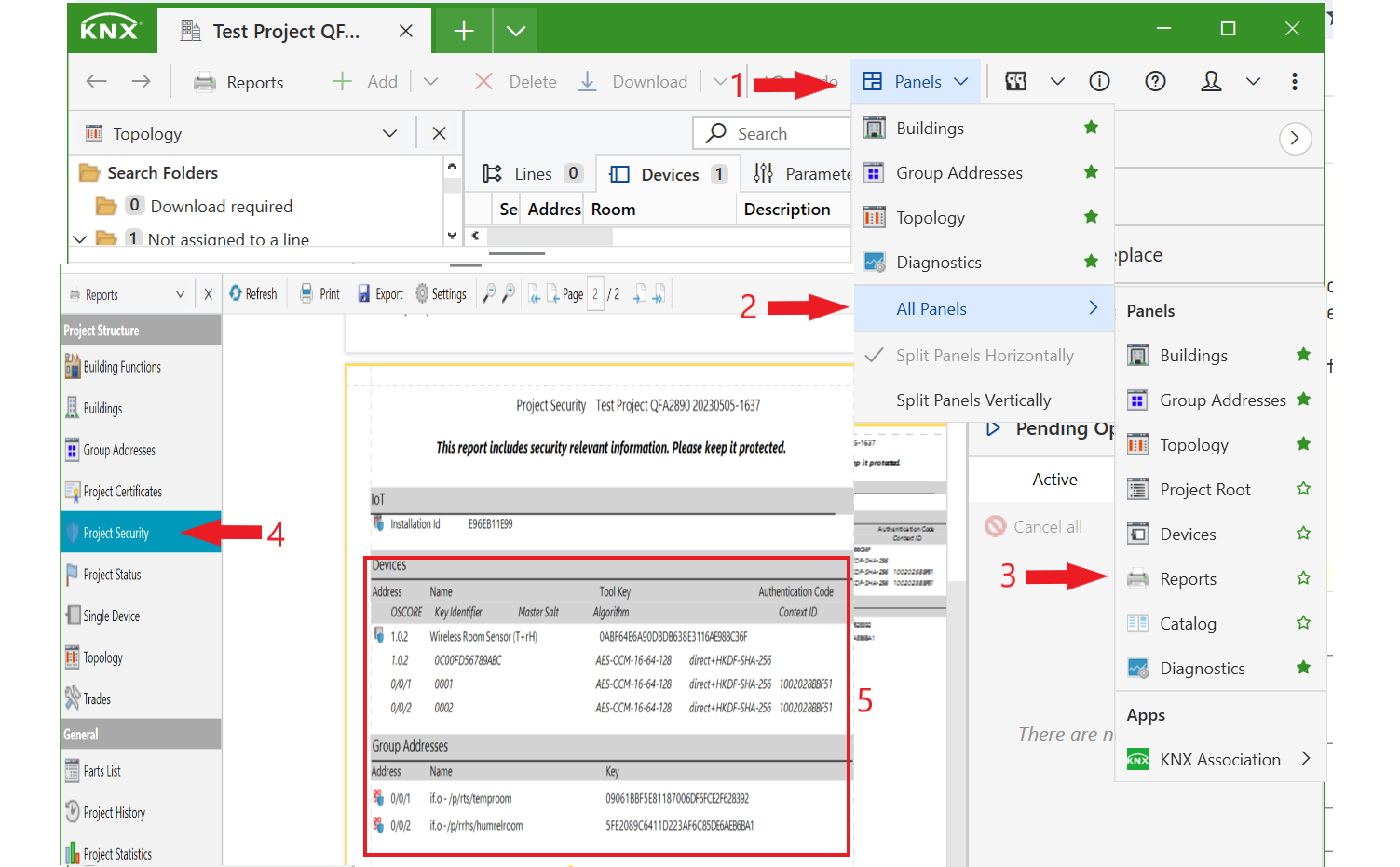
Wireshark OSCORE Credential Configuration
To view decrypted CoAP traffic in Wireshark, configure the OSCORE security context:
- Open Wireshark and go to Edit -> Preferences -> Protocols -> OSCORE.
- Add the security context with the key as Master Secret, the Key Identifier as Sender ID, and Context ID.

Diagnostics with Debug Messages
Several compile options show debug messages during startup and runtime in a terminal window.
For details, review debug options in CMakeLists.txt. One example is OC_DEBUG_ENABLED.
Debug
Use these messages to debug the stack or an application during development.
Diagnostics with Device Discovery
Devices need multicast DNS service discovery and CoAP discovery support.
For service discovery from a client (MaC), a device advertises the KNX serial number (sn), KNX individual address (ia), and KNX installation ID (iid) using PTR resource records.
This makes KNX IoT devices discoverable on the local network with a zero-configuration approach.
Host Name
The device host name follows the pattern knx-serialnumber.knx.local. Physical devices use this format. For virtual devices on a computer, set the host name according to the OS. Setting it from a C program is intrusive and requires superuser or administrator privileges, so this stack does not do it directly.
Examples
The following examples use the Linux avahi-utils command-line tool.
Unknown Devices
A client discovers a not commissioned device with a known serial number, or by querying programming mode.
Use service name _pm._sub._knx._udp.local for programming mode.
Query for a device in programming mode:
avahi-browse -rt _pm._sub._knx._udp

= IPv6 001caffe1234._sub._knx._udp
  hostname = [knx-001caffe1234.local]
  address = [fd11:2222:33a3:0001:6cd9:8ad2:8e88:1f68]
  port = [5683]
Query for a device with serial number 001caffe1234 using service name _{sn}._sub._knx._udp.local:
avahi-browse -r _001caffe1234._sub._knx._udp

= IPv6 001caffe1234._sub._knx._udp
  hostname = [knx-001caffe1234.local]
  address = [fd11:2222:33a3:0001:6cd9:8ad2:8e88:1f68]
  port = [5683]
Known Devices
A client discovers a commissioned device with a known individual address and installation ID.
_ia{ia-iid}._sub._knx._udp.local
Query for a device with IA 33a3 and IID 20a (omit leading zeros and use lowercase):
avahi-browse -r _ia22a3-20a._sub._knx._udp

= IPv6 001caffe1234._sub._knx._udp
  hostname = [knx-001caffe1234.local]
  address = [fd11:2222:33a3:0001:6cd9:8ad2:8e88:1f68]
  port = [5683]